A robot's sensors only make sense if the software knows where each one is mounted and which way it points. In ROS that knowledge lives in the TF tree as static transforms: fixed offsets from the robot's base to each sensor. Getting them wrong produces some of the most confusing bugs in robotics, such as obstacles appearing behind the robot or a map that smears as it turns. This guide covers the ways to publish static transforms in ROS 2, the camera frame trap, and how to check your work. Every example was run on ROS 2 Jazzy.
What a static transform says
A transform from a parent frame to a child frame gives the child's position (x, y, z in metres) and orientation (a quaternion) relative to the parent. For a sensor, the parent is usually base_link and the child is the sensor's own frame, the frame its messages are stamped with (the frame_id in a LaserScan or Image header). Static transforms are published once on the /tf_static topic and kept by every listener, unlike moving transforms, which are published continuously on /tf.
Measure the mount
- Position: measure from the origin of
base_link(often the centre of the drive axle, on the ground or at axle height; check your URDF) to the sensor's reference point (the laser's rotation centre, the camera's optical centre), along the robot's X (forward), Y (left) and Z (up) axes. - Orientation: work out how the sensor is turned relative to the robot, as roll, pitch and yaw in ROS conventions. A camera tilted down 15° has pitch +15°; a laser mounted upside down has roll 180°; an IMU facing backwards has yaw 180°. Our guide to ROS axis conventions explains the signs.
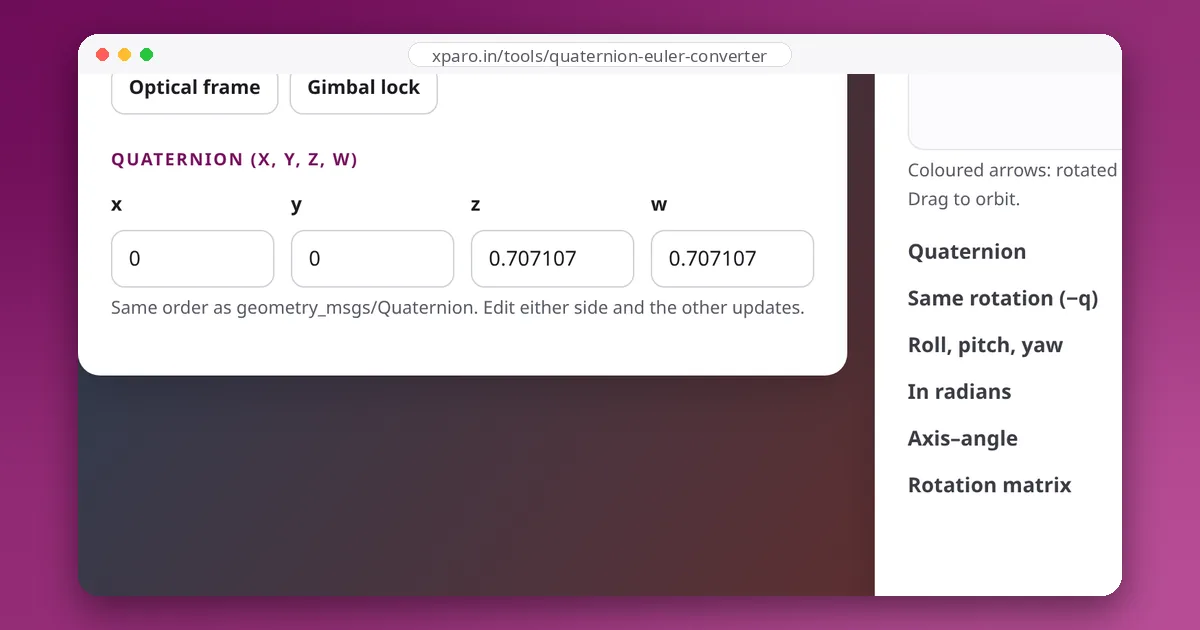
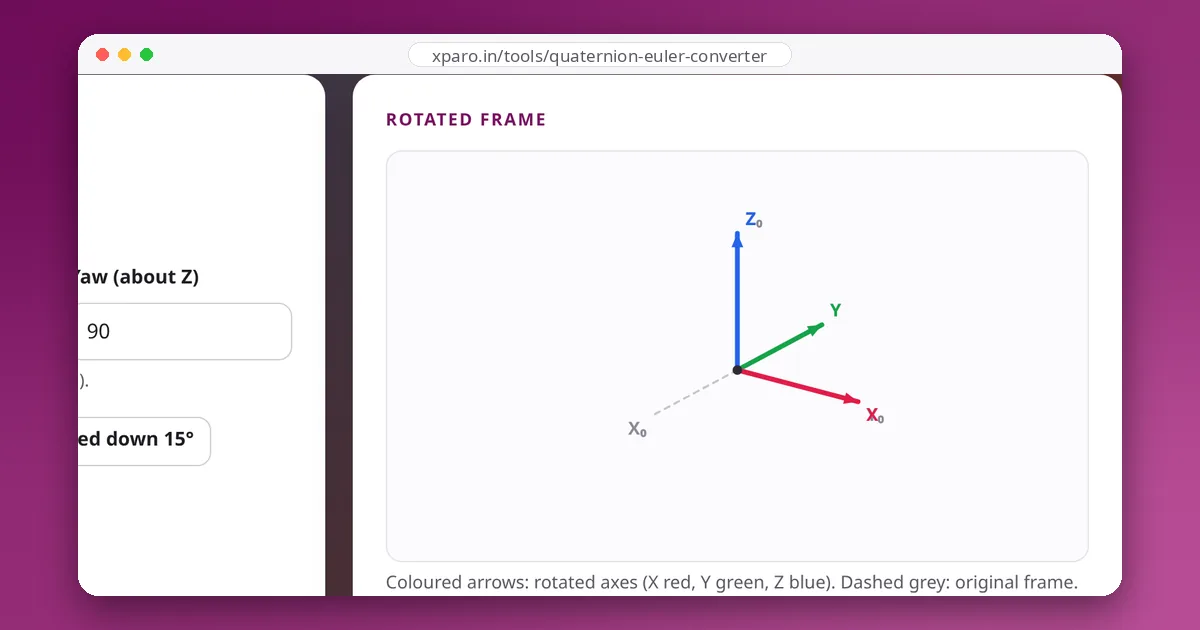
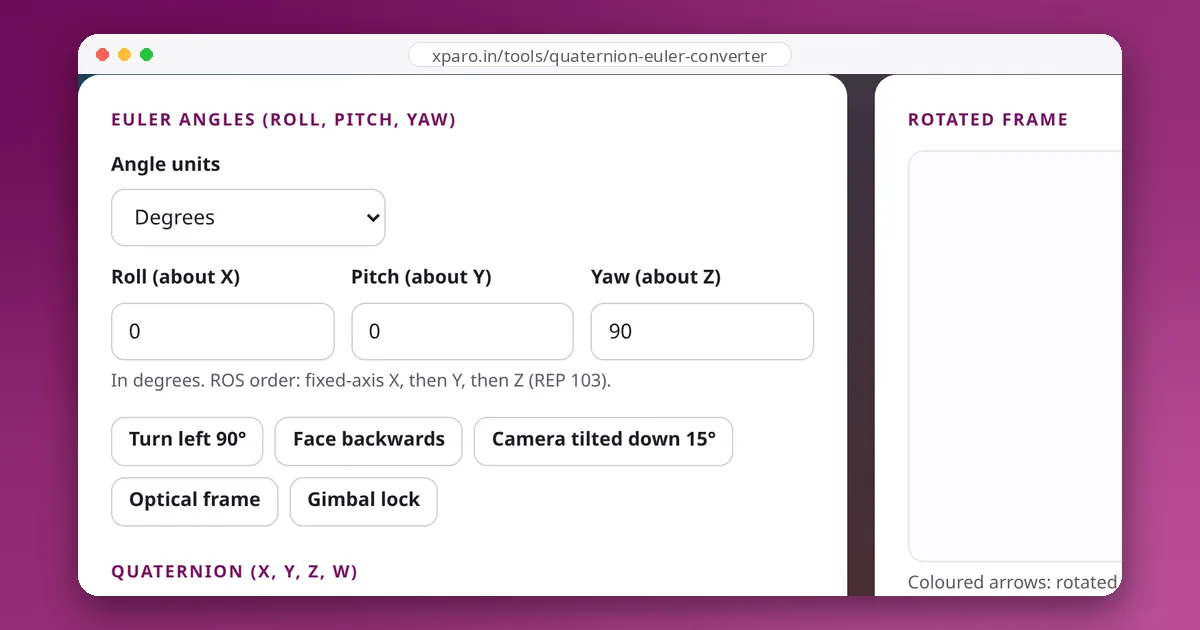
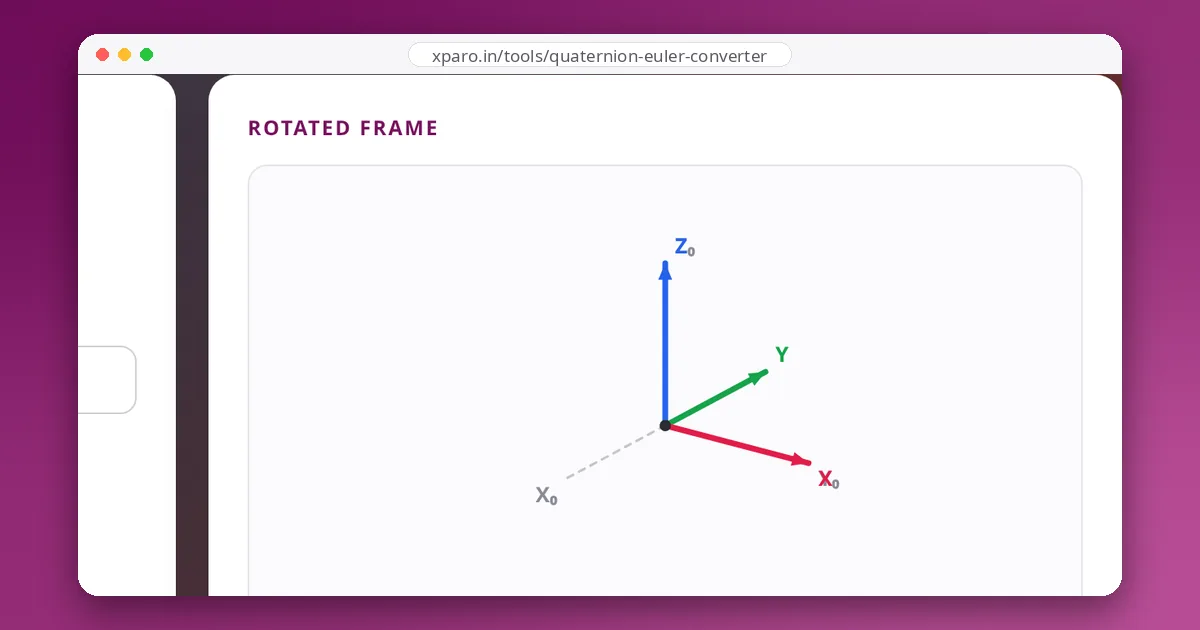
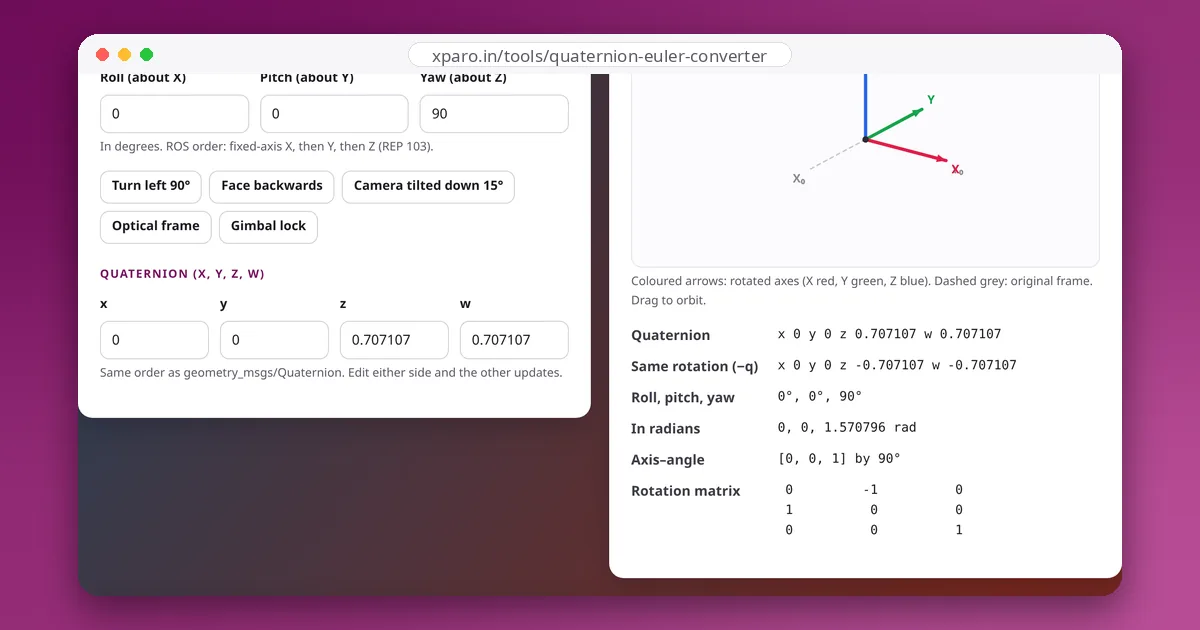
- Convert to radians, and check the quaternion in the Quaternion ↔ Euler Converter, whose 3D view shows where the sensor's axes end up.
Four ways to publish it
1. In the URDF (recommended for anything permanent)
<joint name="camera_joint" type="fixed">
  <parent link="base_link"/>
  <child link="camera_link"/>
  <origin xyz="0.10 0 0.20" rpy="0 0.2618 0"/>
</joint>
robot_state_publisher publishes every fixed joint as a static transform. Keeping sensor mounts in the URDF means the robot's description, visualisation and TF all agree.
2. From the command line
ros2 run tf2_ros static_transform_publisher --x 0.10 --y 0 --z 0.20 \
  --roll 0 --pitch 0.2618 --yaw 0 --frame-id base_link --child-frame-id camera_link
Use the named options. The old positional form (static_transform_publisher x y z yaw pitch roll parent child) still runs, but prints "Old-style arguments are deprecated", and its yaw-pitch-roll order has caught out many people. You can also pass --qx --qy --qz --qw instead of angles.
3. In a launch file
Node(package='tf2_ros', executable='static_transform_publisher',
     arguments=['--x', '0.10', '--y', '0', '--z', '0.20', '--pitch', '0.2618',
                '--frame-id', 'base_link', '--child-frame-id', 'camera_link']),
4. From your own node
from geometry_msgs.msg import TransformStamped
from tf2_ros.static_transform_broadcaster import StaticTransformBroadcaster
from tf_transformations import quaternion_from_euler

broadcaster = StaticTransformBroadcaster(node)
t = TransformStamped()
t.header.stamp = node.get_clock().now().to_msg()
t.header.frame_id = 'base_link'
t.child_frame_id = 'imu_link'
t.transform.translation.x = -0.05
t.transform.translation.z = 0.08
qx, qy, qz, qw = quaternion_from_euler(0.0, 0.0, 3.14159265)   # IMU facing backwards
t.transform.rotation.x, t.transform.rotation.y = qx, qy
t.transform.rotation.z, t.transform.rotation.w = qz, qw
broadcaster.sendTransform(t)    # latched: nodes that start later still receive it
Useful when the mount comes from a calibration file or changes between robots. Keep the node running: the transform is withdrawn when it exits.
The camera frame trap
Cameras have two frames. The body-style frame (often camera_link) follows REP 103: X forward, Y left, Z up. Image data uses the optical frame, by convention named with an _optical_frame suffix: Z forward out of the lens, X right, Y down. The rotation from the first to the second is roll −90°, pitch 0, yaw −90°:
ros2 run tf2_ros static_transform_publisher --roll -1.5708 --yaw -1.5708 \
  --frame-id camera_link --child-frame-id camera_optical_frame
Camera drivers usually publish this for you; if yours does not, images and point clouds appear rotated or mirrored until you add it. With both transforms from our examples running, tf2_echo base_link camera_optical_frame reported a translation of (0.10, 0, 0.20) and RPY (−105°, 0°, −90°): the optical Z axis points forward and 15° down, exactly where the lens looks.
Check your work
ros2 run tf2_ros tf2_echo base_link camera_link     # one transform, as numbers
ros2 run tf2_tools view_frames # the whole tree, as a PDF- Look at it in RViz. Add the TF display and check that each sensor's axes point the right way.
- Spin the robot in place next to a wall with the laser scan displayed in the
odomframe. A correct laser transform keeps the wall in one place; a wrong offset or yaw makes it rotate or smear. - Check the frame names match the
frame_idin the sensor's messages exactly. A typo leaves the data unconnected to the tree.
Common mistakes
- Degrees where radians are expected.
- Two publishers for the same child frame, for example the URDF and a launch file, giving conflicting transforms.
- A sensor transform hung from
odomormapinstead of the robot. - Forgetting the optical frame for cameras.
- Leading slashes in frame names (
/base_link); tf2 in ROS 2 expects plain names.