Every real deployment has rules the walls don't show: stay out of the kitchen, slow down near the reception desk, never enter the loading bay while forklifts are running. Painting those rules into the navigation map works, but it mixes facts with rules and is hard to change. Nav2's costmap filters keep them in separate mask images instead. This guide explains how filters work and walks through a keep-out zone and a speed zone, with parameter names checked against Nav2 on ROS 2 Jazzy.
How costmap filters work
A filter setup has three parts:
- A mask: an ordinary map image and YAML, the same size and position as your navigation map, where the pixel values encode the rule. It is published by a second instance of
map_server. - A filter info server (
costmap_filter_info_server) that tells the costmap which mask to use and how to interpret its values, using four parameters:type,mask_topic,baseandmultiplier. - A filter plugin in the costmap that reads the mask and applies the rule while the robot navigates.
Each mask value is converted into the filter's own units with a simple linear rule, as documented in the nav2_msgs/CostmapFilterInfo message:
The type selects the filter: 0 for keep-out (and preferred lanes), 1 for a speed limit in percent of the maximum speed, 2 for a speed limit in metres per second, and 3 for a binary on/off filter.
Drawing the masks
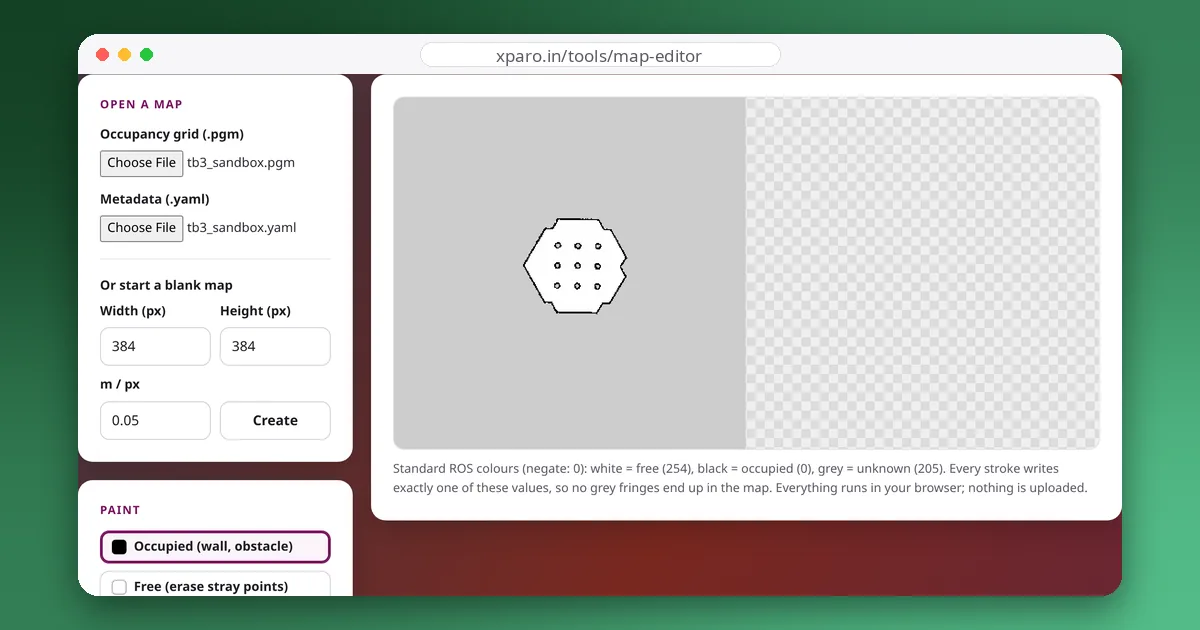
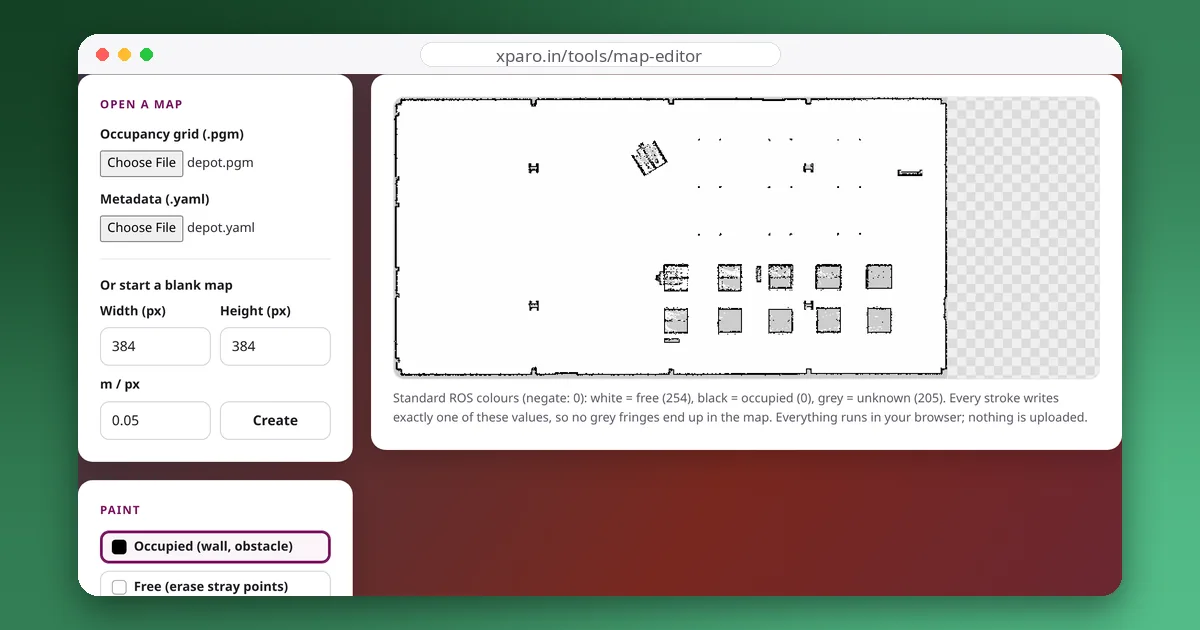
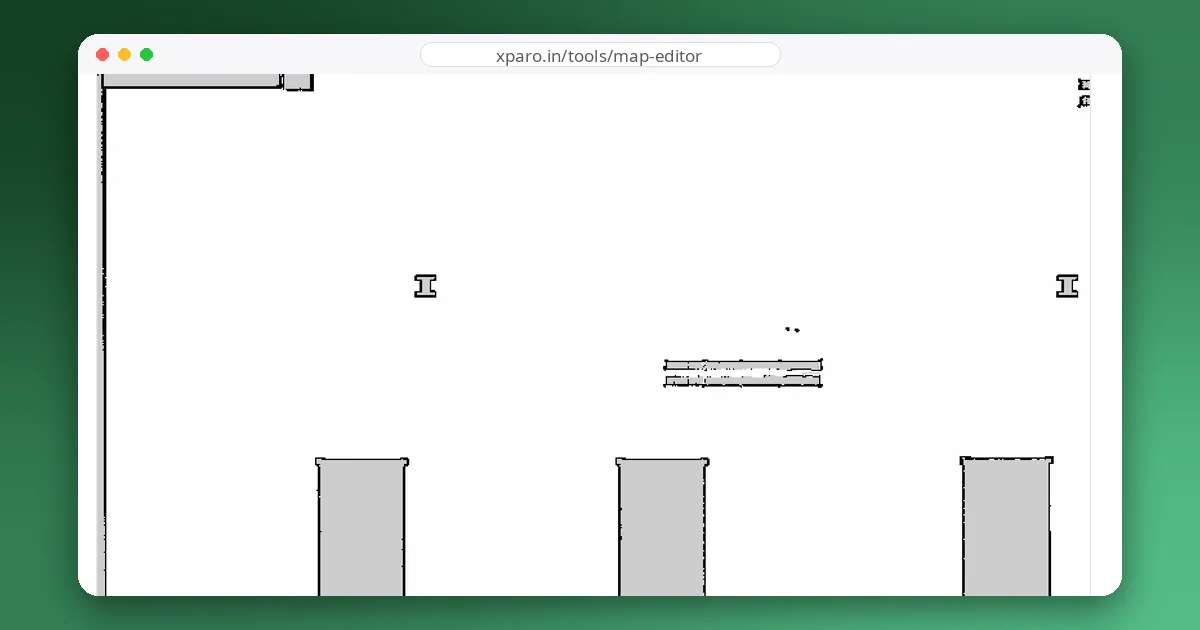
Make each mask a copy of your navigation map so the size, resolution and origin match exactly, then clear it and paint the rule. The ROS Map Editor works well for this: open your map, use Free to wipe it white, and paint the zones. Keep the resolution and origin unchanged so the mask lines up with the map.
- Keep-out mask: white everywhere, black over forbidden areas. Use
mode: trinary. - Speed mask: white for "no limit", grey levels for limits. Use
mode: scaleso intermediate greys survive, withfree_thresh: 0.0andoccupied_thresh: 1.0. On ROS 2 Jazzy we confirmed that these thresholds make the mask value exactly proportional to darkness: pixel 255 → 0, 204 → 20, 153 → 40, 102 → 60, 0 → 100.
A keep-out zone
The mask's YAML:
image: keepout_mask.pgm
mode: trinary
resolution: 0.05
origin: [-10.0, -10.0, 0]      # copy these from your navigation map
negate: 0
occupied_thresh: 0.65
free_thresh: 0.196
Parameters for the mask server and the filter info server:
keepout_mask_server:
  ros__parameters:
    yaml_filename: /path/to/keepout_mask.yaml
    topic_name: /keepout_filter_mask
    frame_id: map

keepout_filter_info_server:
  ros__parameters:
    type: 0                          # keep-out
    filter_info_topic: /keepout_filter_info
    mask_topic: /keepout_filter_mask
    base: 0.0
    multiplier: 1.0
Start both nodes from your launch file. They are lifecycle nodes; in Jazzy, setting autostart_node: true lets each activate itself, or you can add them to a lifecycle manager:
Node(package='nav2_map_server', executable='map_server', name='keepout_mask_server',
     parameters=[filters_params, {'autostart_node': True}], output='screen'),
Node(package='nav2_map_server', executable='costmap_filter_info_server',
     name='keepout_filter_info_server',
     parameters=[filters_params, {'autostart_node': True}], output='screen'),
Finally, add the filter to the costmaps in your Nav2 parameters. Filters go in their own filters list, next to the usual layer plugins:
global_costmap:
  global_costmap:
    ros__parameters:
      filters: ["keepout_filter"]
      keepout_filter:
        plugin: "nav2_costmap_2d::KeepoutFilter"
        enabled: true
        filter_info_topic: "/keepout_filter_info"
Add the same block to local_costmap if the robot should also refuse to drive into the zone when it is already moving, not just avoid planning through it.
A speed zone
For a speed limit in percent, use type: 1 with base: 100.0 and multiplier: -1.0. Then a mask value of 40 (grey 153) means 100 − 40 = 60 % of the maximum speed, and 60 (grey 102) means 40 %. A mask value of 0, white, means no limit at all.
speed_filter_info_server:
  ros__parameters:
    type: 1                          # speed limit, percent
    filter_info_topic: /speed_filter_info
    mask_topic: /speed_filter_mask
    base: 100.0
    multiplier: -1.0

global_costmap:
  global_costmap:
    ros__parameters:
      filters: ["speed_filter"]
      speed_filter:
        plugin: "nav2_costmap_2d::SpeedFilter"
        enabled: true
        filter_info_topic: "/speed_filter_info"
        speed_limit_topic: "/speed_limit"
The speed filter publishes nav2_msgs/SpeedLimit messages, and Nav2's controller server reads them from its speed_limit_topic (by default speed_limit) and scales the robot's maximum speed accordingly. If the robot does not slow down, check that both sides use the same topic name, including any namespace.
Checking that it works
ros2 topic echo /keepout_filter_infoshould show your type, mask topic, base and multiplier once the info server is active.- In RViz, display the mask topic as a map: it must line up exactly with the navigation map. If it is offset, the origin or resolution differs.
- Display the global costmap: forbidden areas should appear as lethal cost.
- For speed zones, echo
/speed_limitwhile driving through a zone.
Why masks beat painting the map
Painting a zone black in the navigation map also changes what the localiser expects to see there, which can hurt localisation, and every rule change means re-editing the map the whole fleet depends on. A mask keeps the map a faithful record of the building and the rules in their own file, which you can version, review and swap without touching the map. For the map itself, see how to clean up a SLAM map.