slam_toolbox is the standard 2D SLAM package in ROS 2 and the one Nav2 recommends for building maps. This guide goes from a robot with a laser scanner to a saved map ready for navigation, with the launch arguments and default parameters checked against slam_toolbox 2.8 on ROS 2 Jazzy, including one default that quietly breaks mapping on real robots.
What slam_toolbox needs
SLAM estimates the robot's position and builds the map at the same time, from laser scans and odometry. Before launching it, make sure your robot provides:
- Laser scans on
/scan(sensor_msgs/LaserScan). Check withros2 topic hz /scan. - Odometry as a transform from
odomto the robot's base frame, usually published by your motor driver ordiff_drive_controller, optionally improved by an IMU throughrobot_localization. - The laser's position on the robot: a transform from the base frame to the laser frame, from your URDF via
robot_state_publisheror a static transform. Getting this rotation right matters; our quaternion converter and guide to static transforms help.
slam_toolbox then publishes the map → odom transform and the map itself on /map.
Install and launch
sudo apt install ros-jazzy-slam-toolbox
ros2 launch slam_toolbox online_async_launch.py use_sim_time:=false
The launch file's use_sim_time argument defaults to true. That suits simulation, but on a real robot without a /clock publisher, slam_toolbox waits on a simulated clock that never ticks, so nothing seems to happen. Always pass use_sim_time:=false on hardware.
The package offers online_async_launch.py and online_sync_launch.py. The asynchronous version always works on the newest scan and skips scans when it falls behind, which keeps it real-time on modest computers; the synchronous version processes every scan, which can give a slightly better map if your CPU keeps up. Start with async.
Check the frames before you drive
The default parameter file (mapper_params_online_async.yaml) assumes these names:
| Parameter | Default | Note |
|---|---|---|
base_frame | base_footprint | If your robot only has base_link, change this. |
odom_frame | odom | |
map_frame | map | |
scan_topic | /scan | Remap or change if your driver uses another name. |
resolution | 0.05 | 5 cm per cell; see choosing a resolution. |
max_laser_range | 20.0 | Set to your sensor's reliable range. |
minimum_travel_distance | 0.5 | Metres the robot must move before a new scan is added. |
minimum_travel_heading | 0.5 | Radians of turning before a new scan is added. |
map_update_interval | 5.0 | Seconds between published map updates. |
do_loop_closing | true | Leave on: it corrects accumulated drift. |
To change them, copy the file, edit it and pass it in:
cp /opt/ros/jazzy/share/slam_toolbox/config/mapper_params_online_async.yaml ~/maps/
ros2 launch slam_toolbox online_async_launch.py use_sim_time:=false \
  slam_params_file:=$HOME/maps/mapper_params_online_async.yaml
A wrong frame name is the most common reason for an empty map: slam_toolbox cannot look up the transforms and drops every scan. ros2 run tf2_tools view_frames draws your TF tree so you can compare the names.
Drive for a good map
- Go slowly, especially when turning. Fast rotations smear scans and are the main cause of bent walls.
- Overlap your path and return to places you have already mapped. When the robot recognises a place, slam_toolbox closes the loop and pulls the whole map into line.
- Close the big loop last: drive the perimeter, come back to the start, then fill in rooms.
- Avoid featureless stretches where you can. Long blank corridors and glass walls give the scan matcher little to hold on to.
- Watch it in RViz: add the Map display on
/mapand the SlamToolboxPlugin panel. If walls start doubling, stop, back up to familiar ground and continue slowly.
Save the map
When the map looks right, save it while slam_toolbox is still running:
ros2 run nav2_map_server map_saver_cli -f ~/maps/officeThis writes office.pgm and office.yaml, the files Nav2's map server loads. slam_toolbox can also save through its own services, and the RViz panel has buttons for both:
# image + YAML, like map_saver_cli
ros2 service call /slam_toolbox/save_map slam_toolbox/srv/SaveMap "{name: {data: '/home/you/maps/office'}}"

# the pose graph, so you can continue mapping or localise later
ros2 service call /slam_toolbox/serialize_map slam_toolbox/srv/SerializePoseGraph "{filename: '/home/you/maps/office'}"
Save the serialized pose graph too. It lets you extend the map later instead of starting over, and slam_toolbox's localization mode (localization_launch.py with the map_file_name parameter) uses it.
After mapping
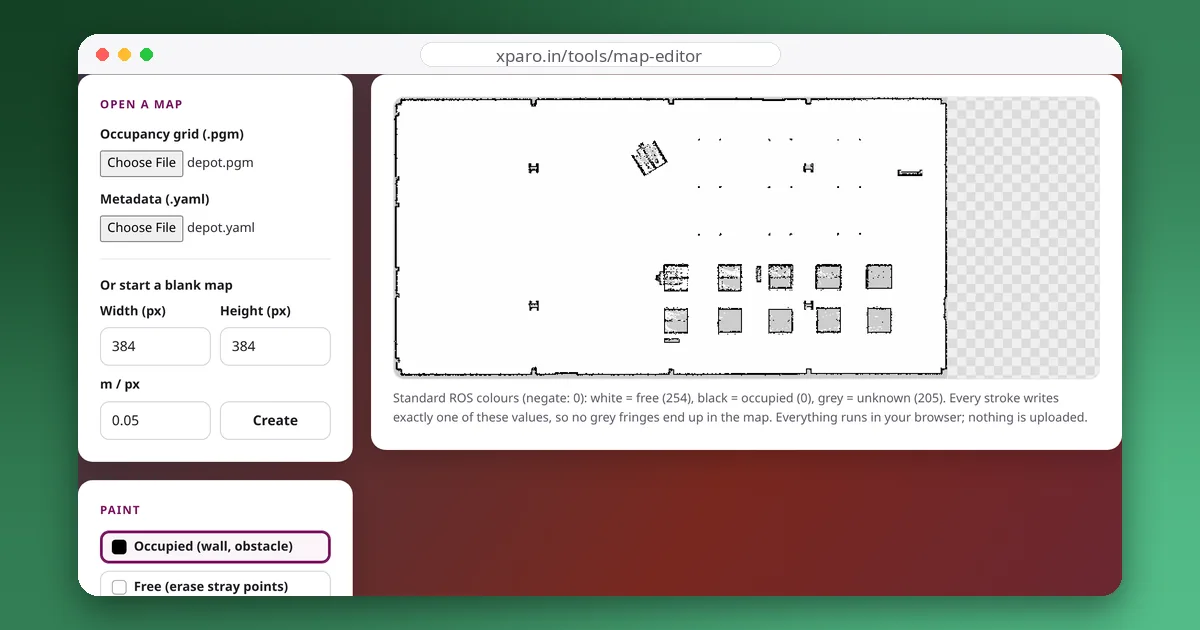
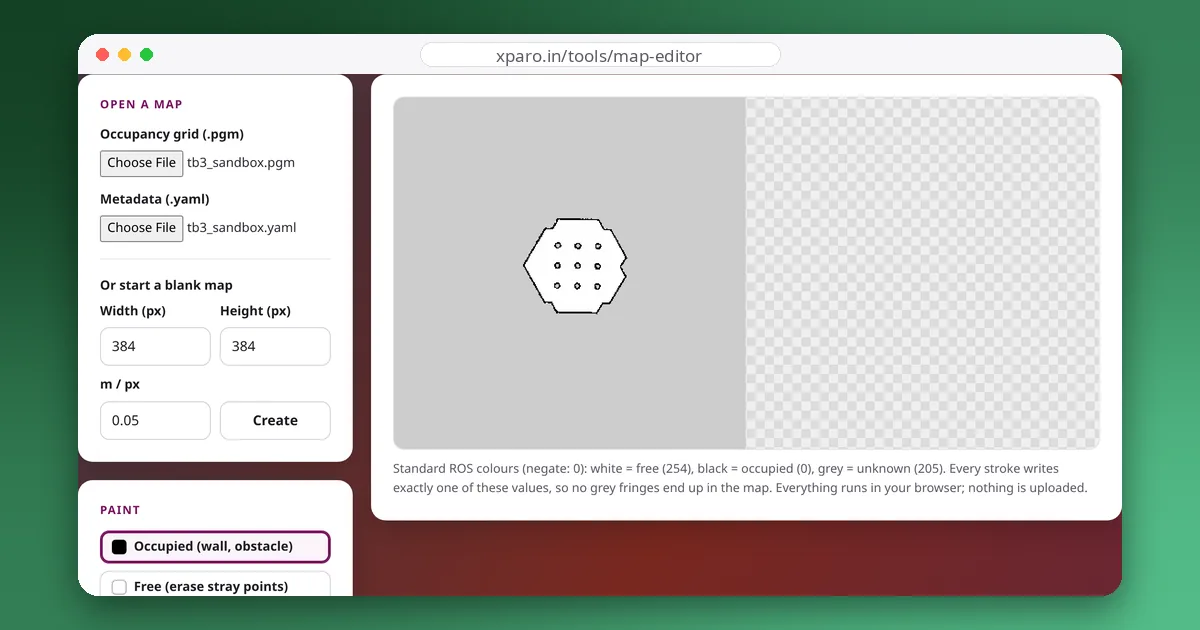
- Open the saved files in the ROS Map Editor and clean up ghosts, noise and glass, following our map clean-up guide.
- Check that the YAML's
free_threshis 0.196 or lower so unknown space stays unknown (maps frommap_saver_clion Jazzy are written that way). - Load the map in Nav2 (
map:=in the bringup launch) and test localisation and planning before relying on it.