Most ROS 2 build problems come from a short list of causes, and each produces a recognisable message. We reproduced the most common ones on ROS 2 Jazzy so the messages below are the real ones, followed by what they mean and how to fix them.
Before anything else: three habits
- Build from the workspace root (the folder that contains
src/), never from insidesrc/or a package. Building elsewhere creates straybuild/,install/andlog/folders in the wrong place. - Source in the right order in every new terminal: first the ROS installation, then your workspace.
source /opt/ros/jazzy/setup.bash source ~/ros2_ws/install/setup.bash - Install dependencies with rosdep before the first build of a workspace:
rosdep install --from-paths src --ignore-src -y
"Package 'robot_demo' not found"
$ ros2 run robot_demo talker
Package 'robot_demo' not found
Cause: the terminal does not know about your workspace. Either it was never sourced, the build failed, or the package name is misspelled. Fix: build, then source install/setup.bash from the workspace root and try again. Check that ros2 pkg list | grep robot_demo finds it.
"No executable found"
$ ros2 run robot_demo talk
No executable found
Cause: the package exists, but it has no executable by that name. In Python packages, the node is missing from console_scripts in setup.py, the name is misspelled, or setup.cfg is missing its script_dir lines. In C++ packages, the target is missing an install(TARGETS … DESTINATION lib/${PROJECT_NAME}) rule. Fix: add the entry point or install rule, rebuild and re-source. List what actually got installed with ros2 pkg executables robot_demo.
A launch file "was not found in the share directory"
$ ros2 launch robot_demo missing.launch.py
file 'missing.launch.py' was not found in the share directory of package
'robot_demo' which is at '…/install/robot_demo/share/robot_demo'
Cause: launch files run from the install space, and this one was never installed (or its name is wrong). Fix: add the launch folder to data_files in setup.py, or install(DIRECTORY launch DESTINATION share/${PROJECT_NAME}) in CMakeLists.txt, then rebuild. The message even tells you which folder it searched.
CMake "Could not find a package configuration file"
CMake Error at CMakeLists.txt:10 (find_package):
  By not providing "Findgrid_map_core.cmake" in CMAKE_MODULE_PATH this
  project has asked CMake to find a package configuration file provided by
  "grid_map_core", but CMake did not find one.

  Could not find a package configuration file provided by "grid_map_core"
  with any of the following names: …
Cause: a find_package() dependency is not installed, or not in the sourced environment. Fix: declare it in package.xml and run rosdep install --from-paths src --ignore-src -y, or install it directly (sudo apt install ros-jazzy-grid-map-core). If the dependency is another package in your workspace, make sure it builds first and that you have listed it in package.xml so colcon orders the build correctly.
Python "ModuleNotFoundError" when the node starts
    import pyserial_typo
ModuleNotFoundError: No module named 'pyserial_typo'
[ros2run]: Process exited with failure 1
Cause: the build succeeded, because Python packages are not compiled, but a module the node imports is not installed, or the import has a typo. Fix: install the library (for system packages, add an exec_depend on its rosdep key, such as python3-serial for pyserial, and run rosdep). If the missing module is your own package, check that the module directory has an __init__.py and the same name as the package.
Changes don't seem to take effect
Cause: you are running an old copy from the install space. Without --symlink-install, every build copies files; editing the source does nothing until you rebuild. Even with it, new entry points, new launch files and C++ changes need a rebuild. Fix: rebuild the package (colcon build --symlink-install --packages-select robot_demo) and re-source. If things look truly stuck, delete that package's folders in build/ and install/ and build again.
A package from another workspace runs instead of yours
Cause: two sourced workspaces contain a package with the same name, and the one sourced last wins. Fix: open a fresh terminal and source only the ROS installation and the workspace you want. ros2 pkg prefix robot_demo shows which copy is being used.
"colcon: command not found"
Cause: colcon is a separate tool from ROS itself. Fix: sudo apt install python3-colcon-common-extensions.
Builds that freeze or run out of memory
Cause: large C++ packages compiled in parallel can exhaust the RAM of a small computer such as a Raspberry Pi, which then swaps until it appears frozen. Fix: limit parallelism: MAKEFLAGS="-j1" colcon build --executor sequential, or add swap space.
A quick diagnostic routine
- Read the first error in the log, not the last; later errors are often consequences of the first.
- Rebuild just the failing package with
--packages-selectand--event-handlers console_direct+to see its full output. - Check
install/<package>/for the files you expect: executables inlib/<package>, launch and config files inshare/<package>. - Open a fresh terminal and source in order before concluding anything.
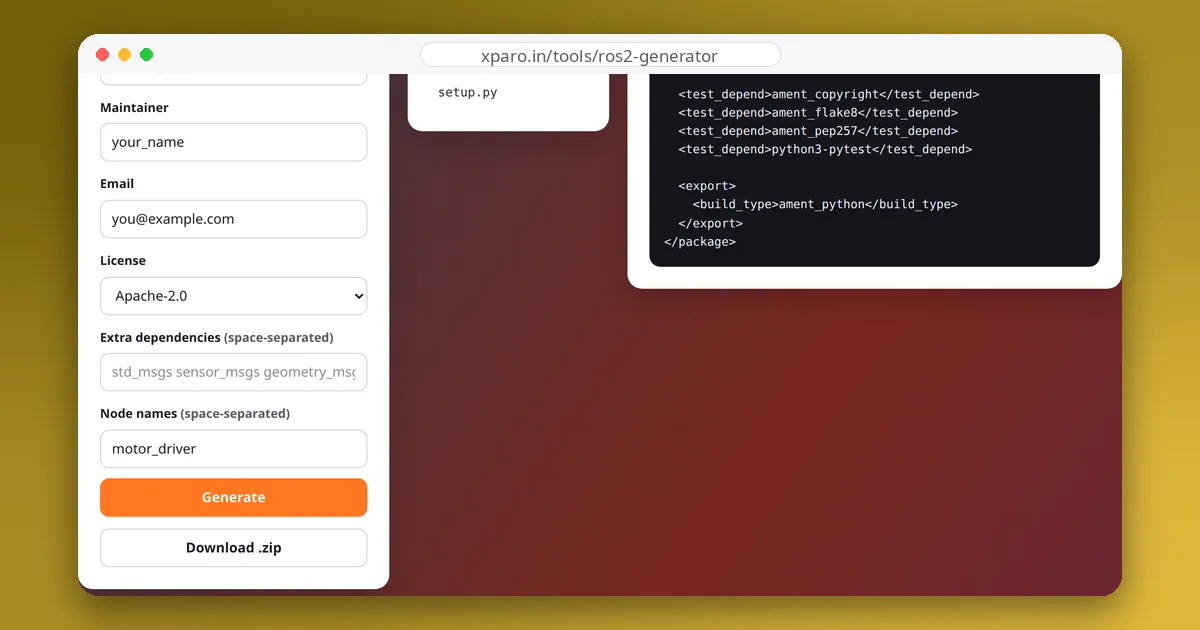
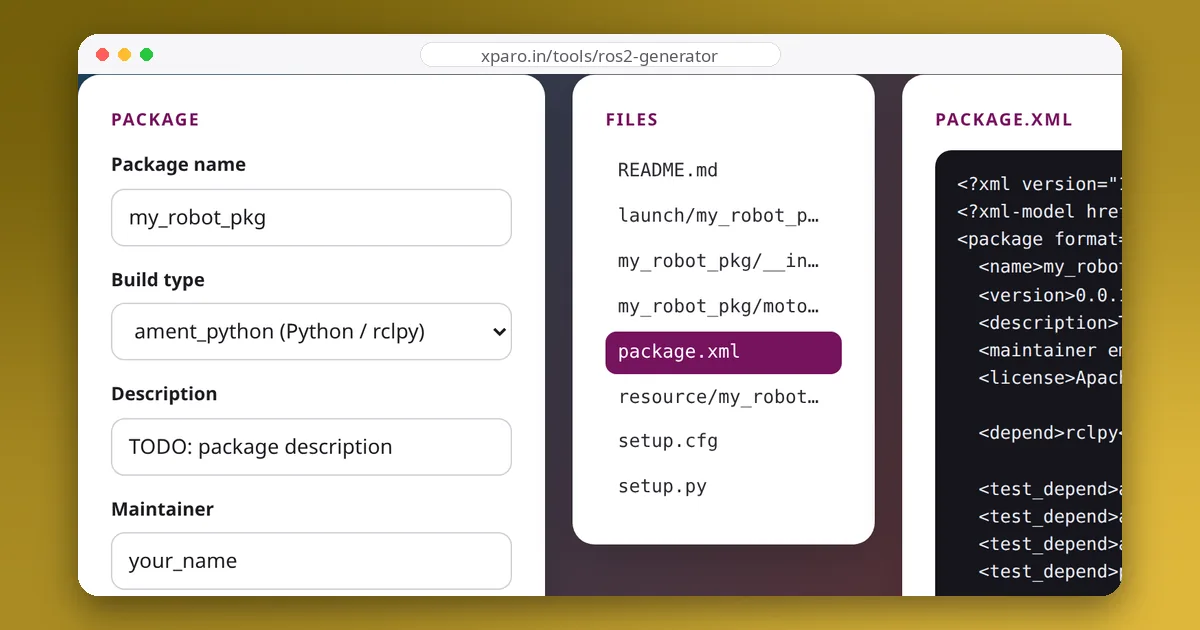
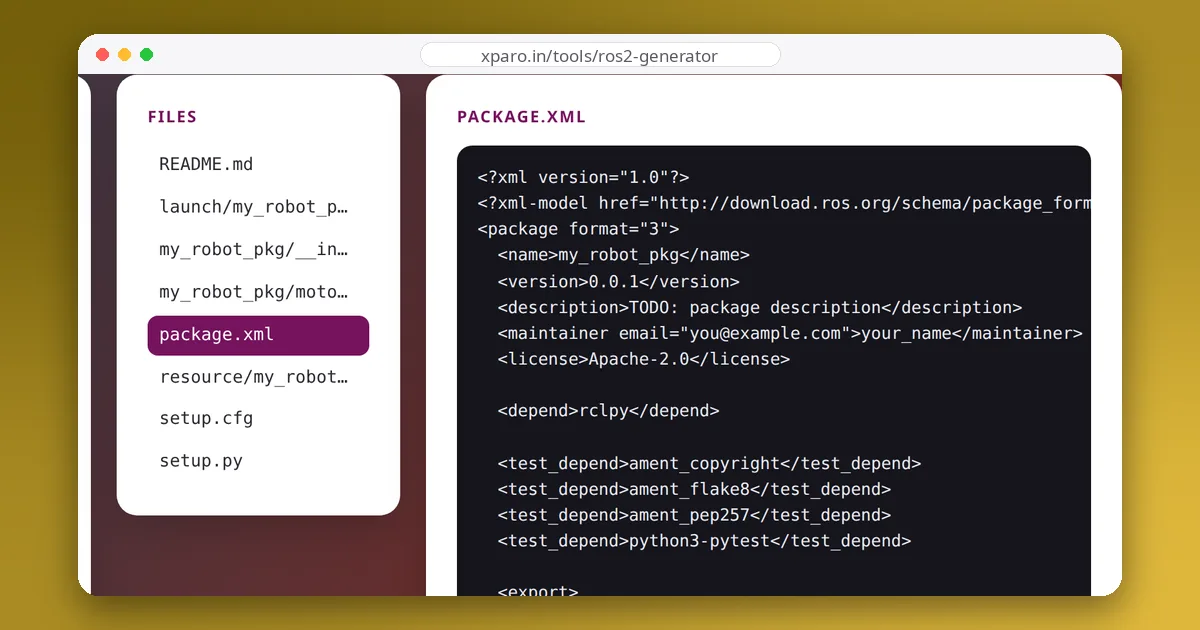
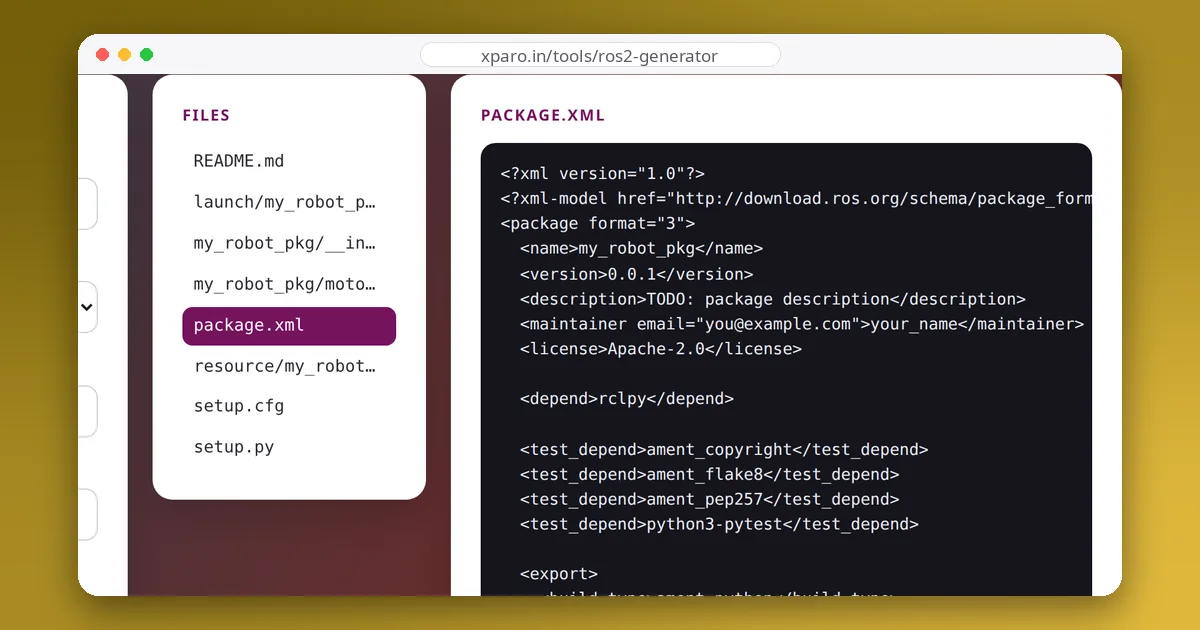
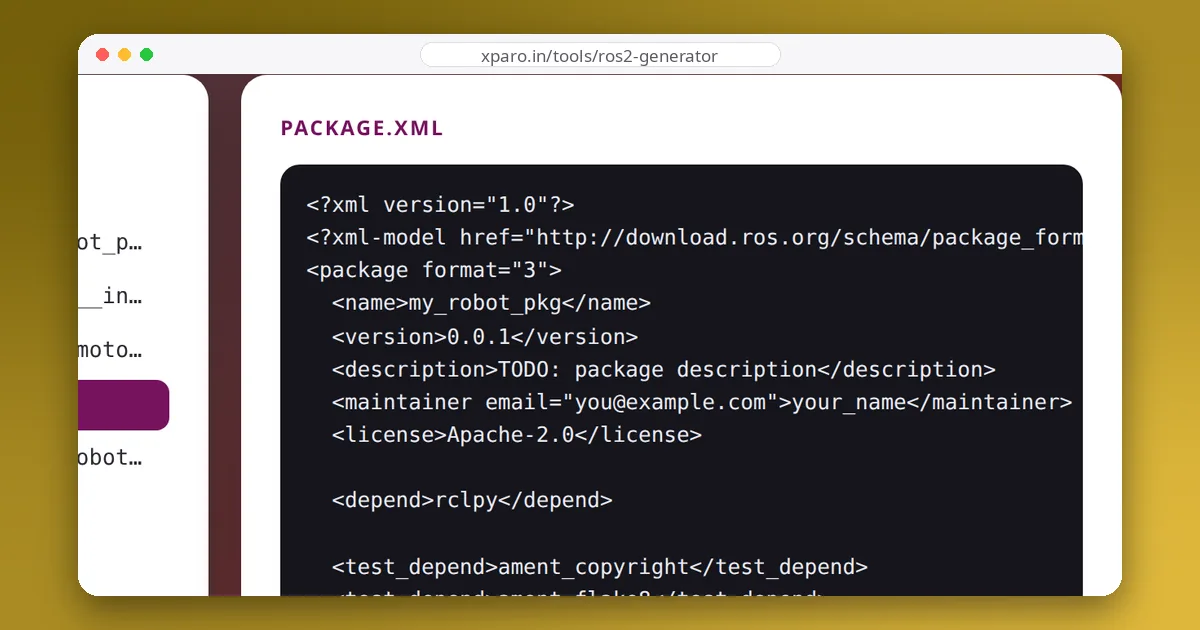
Many of these errors never happen with a correct package skeleton. The ROS 2 Package Generator writes package.xml, setup.py, setup.cfg or CMakeLists.txt, entry points and launch installation correctly, and our guide to the anatomy of a ROS 2 package explains every file.