For years, talking to a microcontroller meant installing an IDE, a terminal program or a driver-specific tool. The Web Serial API lets a web page open a serial port directly, with your permission, which makes browser-based serial monitors, configuration pages and firmware tools possible. This guide explains how it works, what it can and cannot do, and the code to connect, read lines and send commands.
What the Web Serial API is
Web Serial is a browser standard that gives JavaScript access to serial ports: USB-to-serial adapters, boards with native USB serial such as many Arduino and ESP32 models, and other devices that appear to the operating system as a serial port. It is supported in desktop Chromium-based browsers (Chrome, Edge, Opera). Firefox and Safari do not support it.
Two safety rules shape how it works:
- The user chooses the port. A page cannot list or open ports on its own. It calls
navigator.serial.requestPort()in response to a click, and the browser shows its own picker. Only the port the user picks is shared with that page. - Secure pages only. The API is available on HTTPS pages and on
localhost, not on plain HTTP.
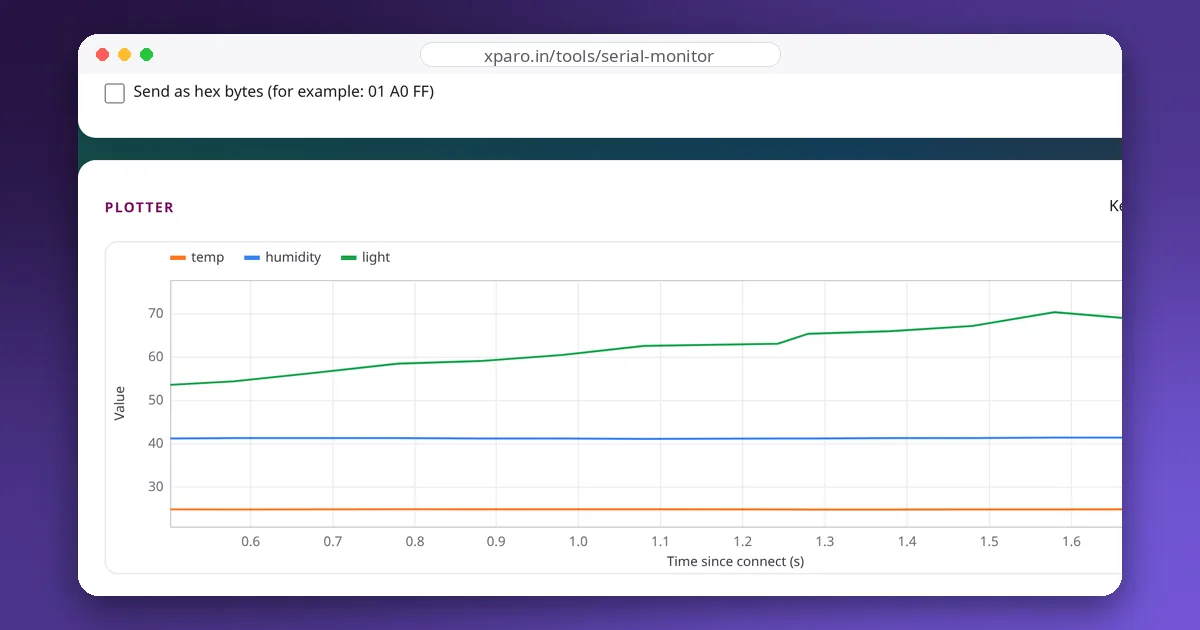
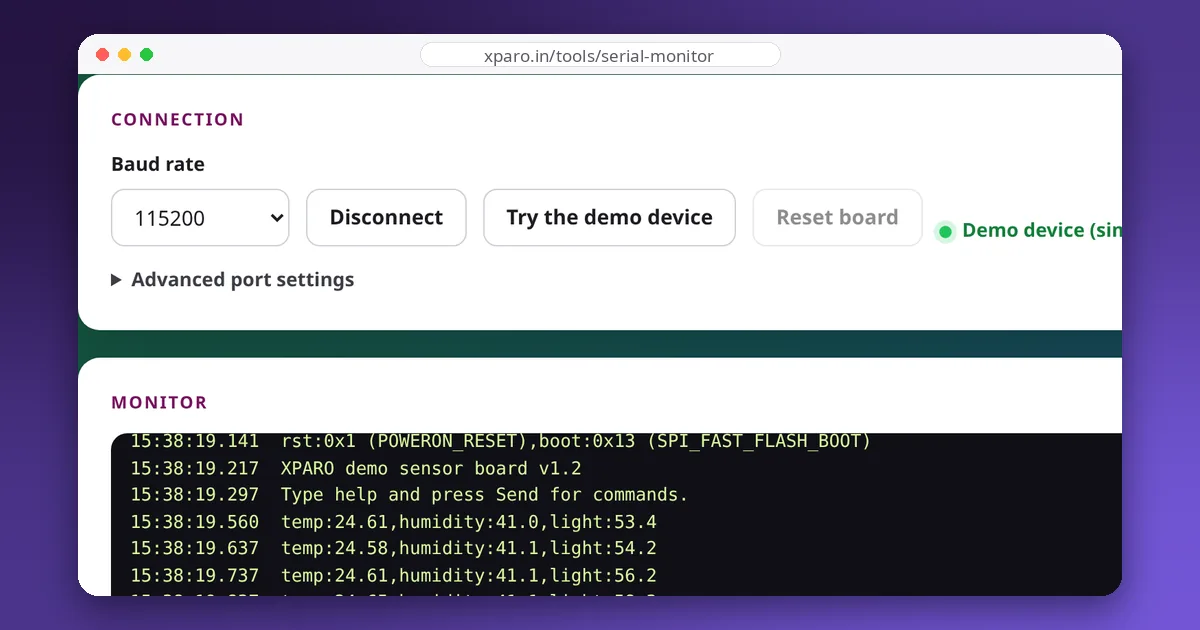
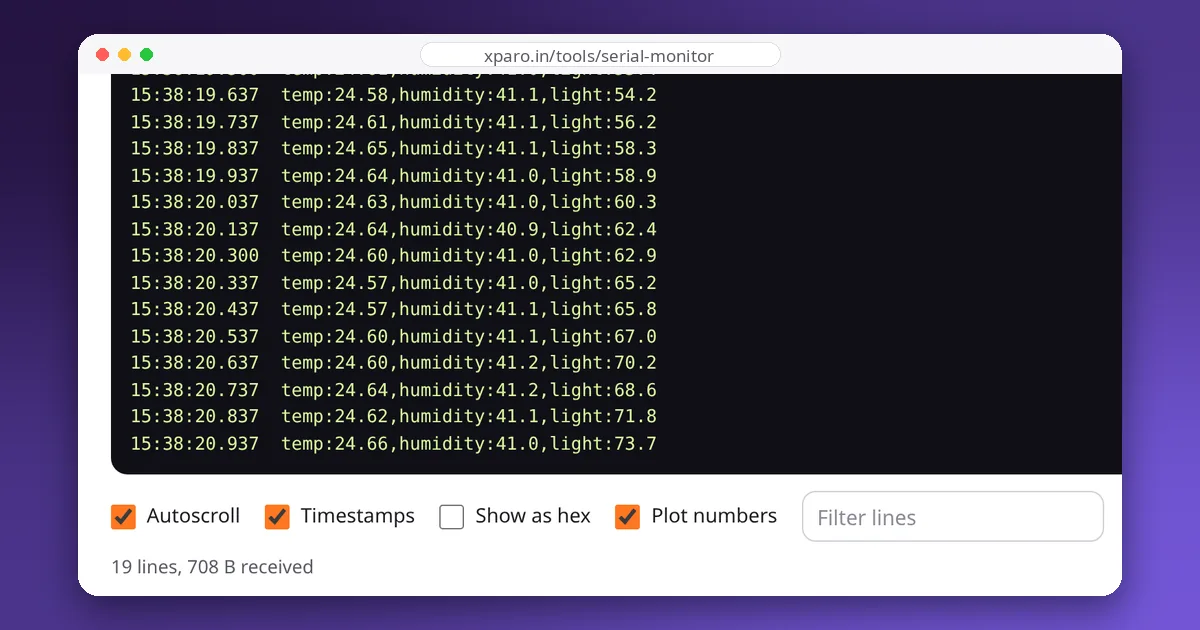
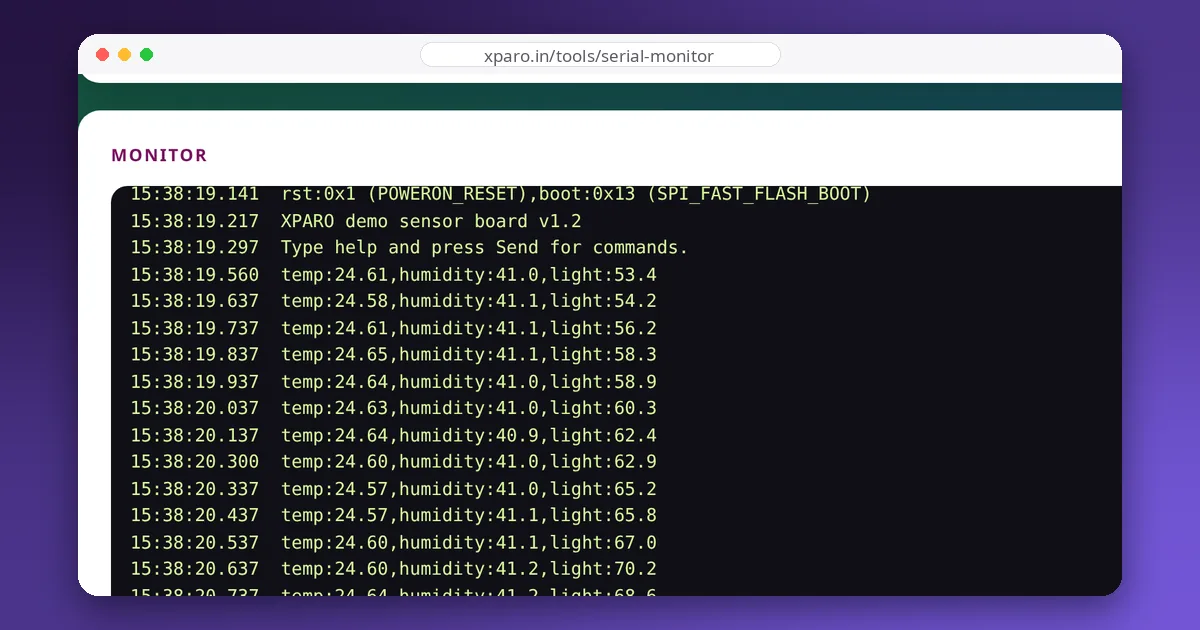
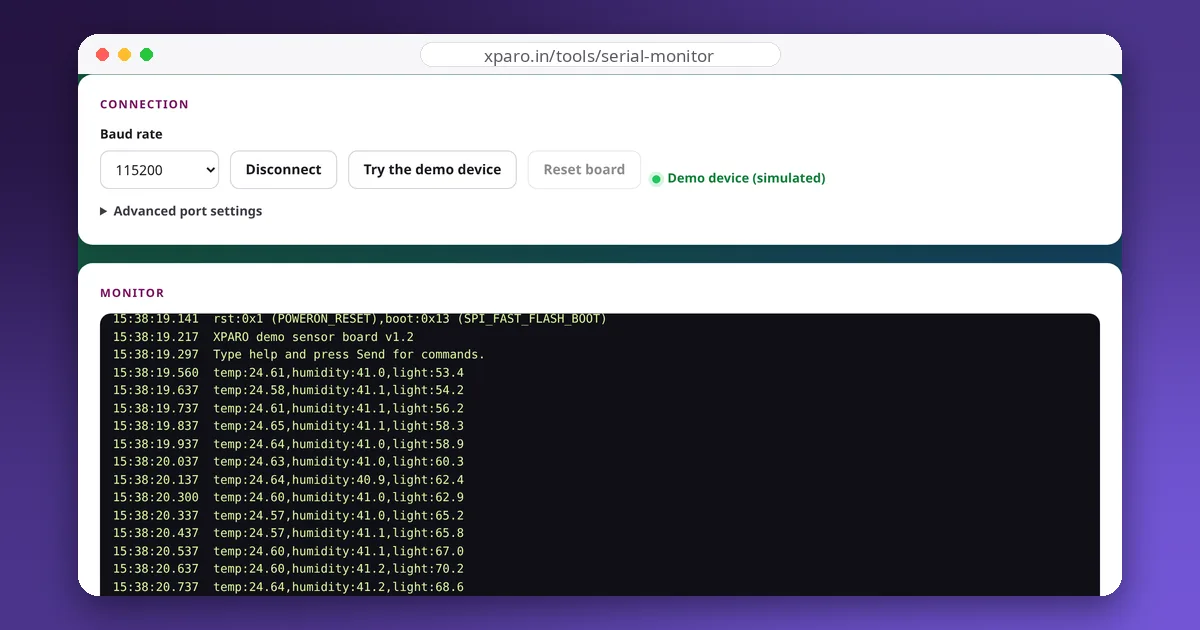
The Web Serial Monitor is built on this API: it connects, reads, sends, logs and plots without any installation, and the data never leaves your computer.
Connecting and reading lines
const port = await navigator.serial.requestPort();   // must run from a click handler
await port.open({ baudRate: 115200 });

// decode bytes to text, then split the text into lines
const decoder = new TextDecoderStream();
const readableClosed = port.readable.pipeTo(decoder.writable);
const reader = decoder.readable.getReader();

let buffer = "";
while (true) {
  const { value, done } = await reader.read();
  if (done) break;                  // the reader was cancelled
  buffer += value;
  const lines = buffer.split("\n");
  buffer = lines.pop();             // keep the unfinished last line for next time
  for (const line of lines) console.log(line.trim());
}
Data arrives in chunks that have nothing to do with your lines: one read() may return half a line or several lines at once. Always accumulate into a buffer and split on the newline, as above. trim() removes the \r that Arduino's Serial.println() adds before the \n.
Sending a command
const writer = port.writable.getWriter();
await writer.write(new TextEncoder().encode("led on\n"));
writer.releaseLock();               // let other code write later
On the microcontroller, read the command up to the newline:
void loop() {
  if (Serial.available()) {
    String cmd = Serial.readStringUntil('\n');
    cmd.trim();
    if (cmd == "led on")  digitalWrite(LED_BUILTIN, HIGH);
    if (cmd == "led off") digitalWrite(LED_BUILTIN, LOW);
  }
}
Closing cleanly
A port cannot close while a stream is locked. Cancel the reader, wait for the pipe to finish, then close:
await reader.cancel();
await readableClosed.catch(() => {});   // ignore the cancellation error
await port.close();
If you skip these steps, port.close() throws and the port stays busy until the page reloads.
Useful extras
- Port options.
open()also acceptsdataBits,stopBits,parity,flowControlandbufferSizefor devices that need them. - Filtering the picker.
requestPort({ filters: [{ usbVendorId: 0x303a }] })shows only Espressif devices; Arduino's vendor ID is0x2341.port.getInfo()returns the vendor and product IDs of a chosen port. - Remembered ports.
navigator.serial.getPorts()returns ports the user granted before, so a page can reconnect without asking again. - Control lines.
port.setSignals({ dataTerminalReady, requestToSend })drives DTR and RTS, which most ESP32 and Arduino boards use to reset. The monitor's Reset button uses this. - Plugging and unplugging.
navigator.serialfiresconnectanddisconnectevents, so a page can react when a board is unplugged.
Recoverable errors
Line errors such as a framing error, parity error, buffer overrun or break end the current read with an exception, but the port stays open and port.readable becomes a fresh stream. Wrap the reading loop in an outer loop that gets a new reader while port.readable is available, and the connection survives a glitch. If the device is unplugged, port.readable becomes null and the outer loop ends.
What it is good for on robots
- A serial monitor and plotter on any computer, including ones where you can't install software.
- Configuration pages for a robot's microcontroller: set PID gains or calibration values from a form.
- Field diagnostics: a technician opens a web page instead of setting up a toolchain.
If nothing appears when you connect, the cause is almost always outside the browser: a wrong baud rate (see serial debugging basics), a charge-only cable or a missing driver (see fixing USB serial problems).