How to use the serial monitor
- Use a supported browser. The Web Serial API works in desktop Chrome, Edge and Opera. Firefox and Safari don't support it yet; they can still run the demo device.
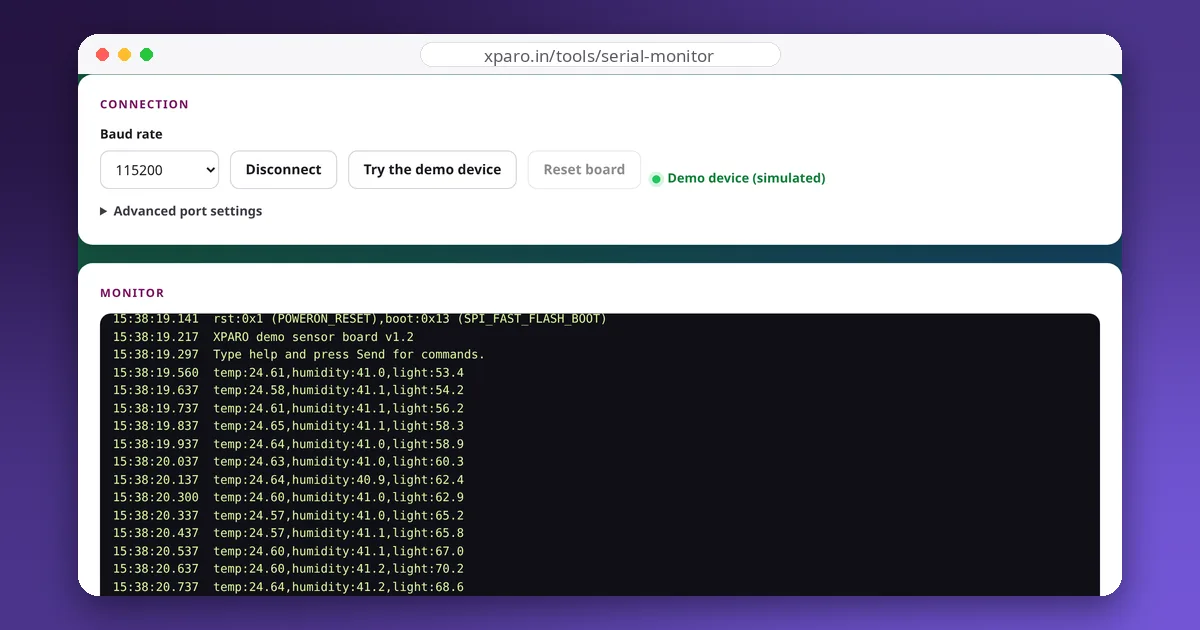
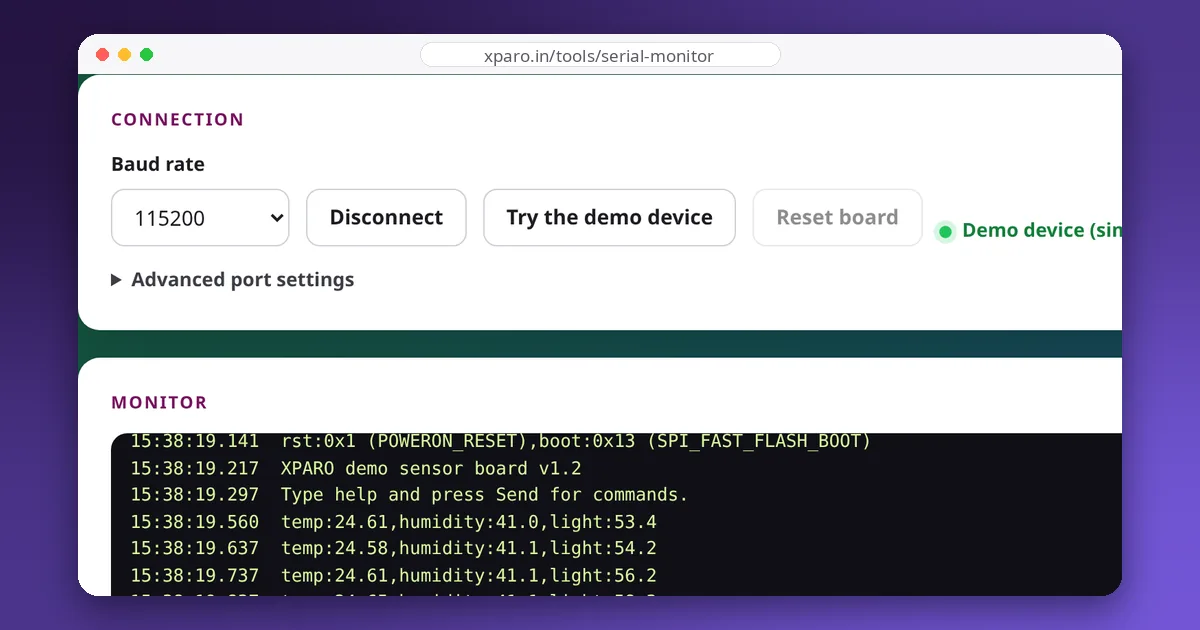
- Match the baud rate. Choose the same rate as
Serial.begin()in your sketch, usually 115200 or 9600. A mismatch is the most common cause of garbled text. - Connect. Press Connect and pick your board in the browser's dialog. Only the port you choose is shared with this page, and only until you close the tab.
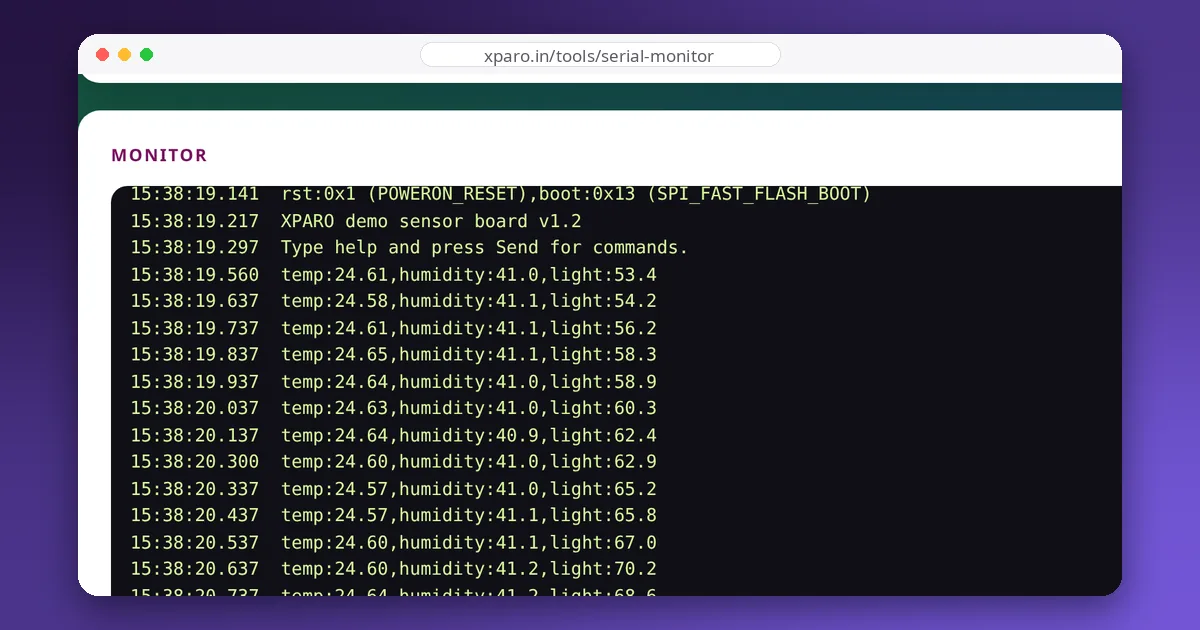
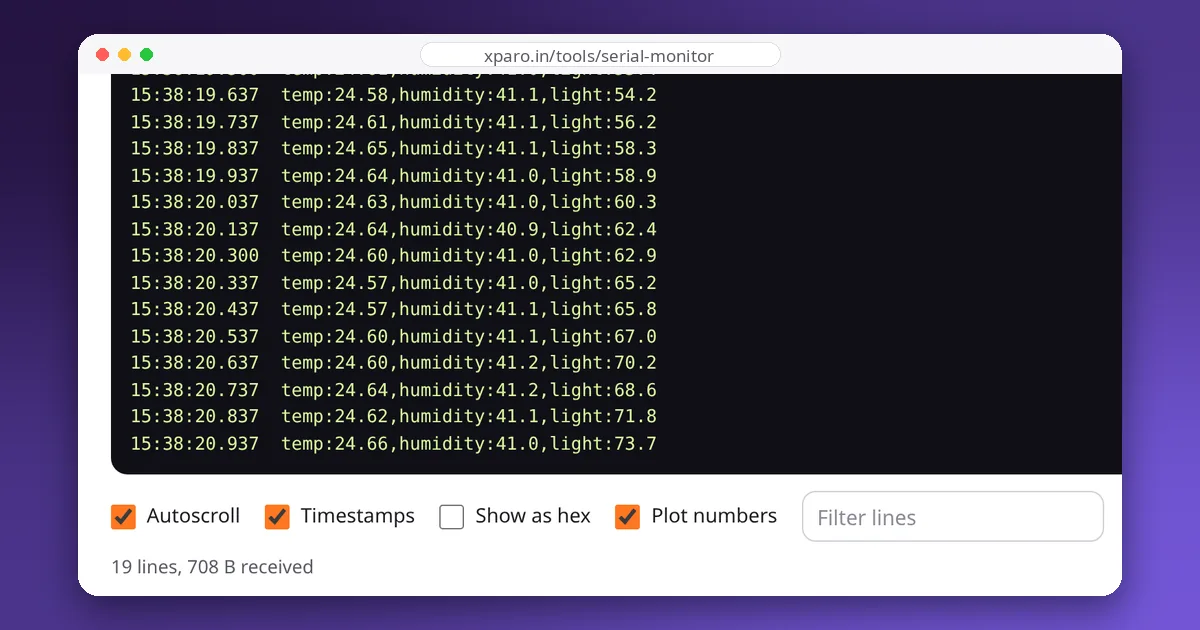
- Read, send and save. Incoming lines appear with timestamps. Type a command and press Enter to send it with the chosen line ending, use the arrow keys for history, and save the whole session as a text file.
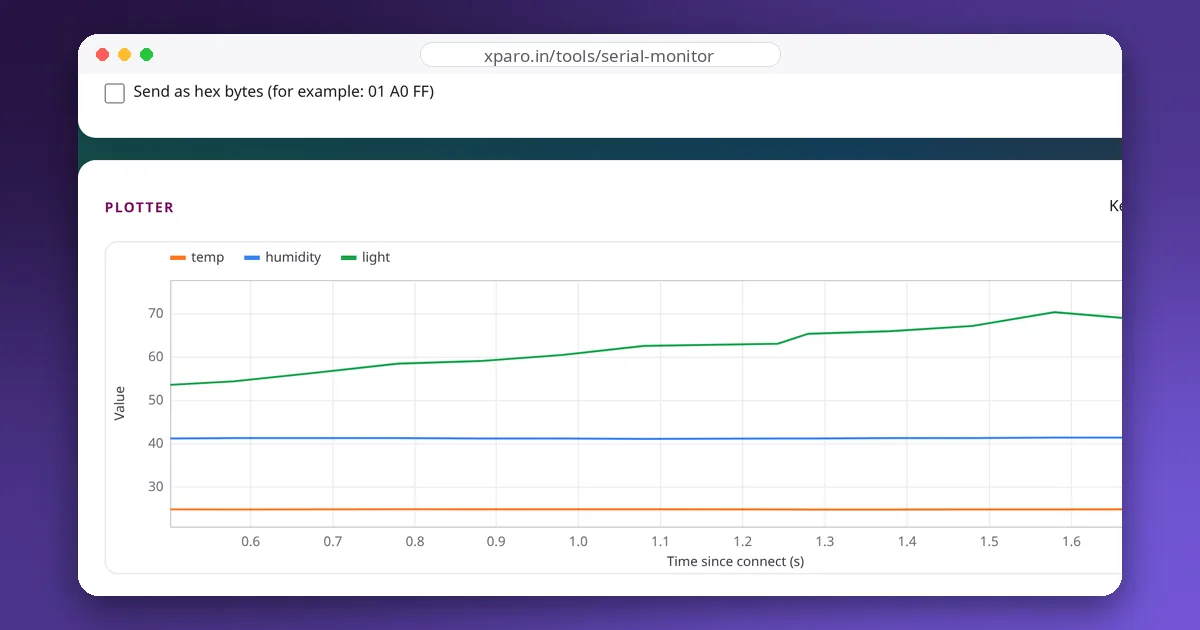
- Plot. Print numbers on one line and they are plotted live, one line per value.
Printing data the plotter understands
Each line is split on commas, spaces, tabs or semicolons. Plain numbers become value 1, value 2 and so on; name:value or name=value pairs get their own named line, the same format the Arduino IDE serial plotter uses. A line is only plotted when it contains nothing else, so text with numbers in it, such as an ESP32's boot message with its build date, stays in the monitor and doesn't distort the chart. Print units in a separate line, or in the name (dist_cm:12).
// Arduino / ESP32: three named values, ten times a second
void loop() {
  Serial.print("temp:");     Serial.print(readTemp(), 2);
  Serial.print(",humidity:"); Serial.print(readHumidity(), 1);
  Serial.print(",light:");    Serial.println(analogRead(A0));
  delay(100);
}
Keep lines short and end each with println. A line that never ends is shown anyway once it passes 4 KB, but it can't be plotted.
Troubleshooting
- The board is not in the list. Try another USB cable (many are charge-only), close the Arduino IDE or any other program that holds the port, and install the CH340 or CP210x driver if your board uses one of those chips.
- "Failed to open serial port" on Linux. Your user needs permission for the device: run
sudo usermod -aG dialout $USER, then log out and in again. - Random characters. The baud rate is wrong, or the board is printing boot messages at a different rate (the ESP8266 boot ROM uses 74880).
- Nothing appears after connecting. Press Reset board. Many boards only print at start-up, and some ESP32 boards stay in reset until the RTS line is released.
The page talks to your device directly through the browser. No serial data is sent to XPARO or stored anywhere unless you save the log yourself.