Database (Step 4)
Pages: sidebar Database (Step 4), with one page per kind of record. Use it to: look back at everything your robots reported, search and filter it, open full reports, download recordings, and delete what you no longer need.
Nothing needs setting up: robots save their records as they work. Everything here counts towards the project’s storage (see Dashboard (project overview)).
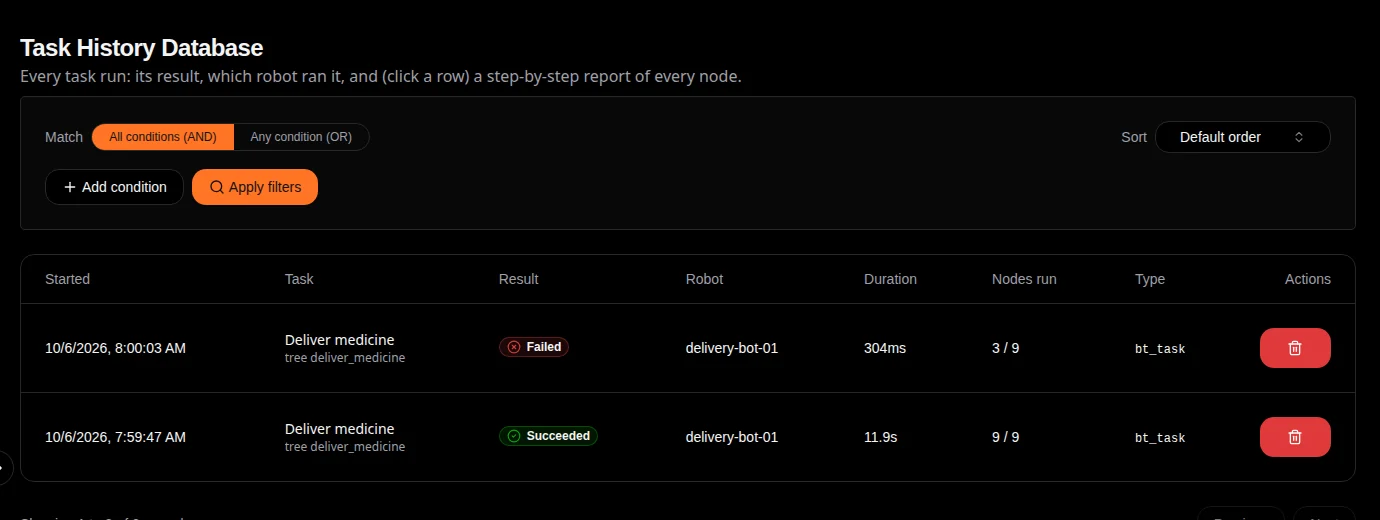
Task history: every run, its result and which robot ran it.
The pages
Page |
Address |
What it holds |
|---|---|---|
Tasks |
|
Every task run: when it started, the task and tree, the result,
the robot, the duration and how many nodes ran. Click a row for the
full run report (every node with its result, ticks and timing, a
timeline, the problems found before running, the blackboard before and
after), which you can copy or download as JSON. Records sent with
|
Sensors |
|
Sensor uploads, including ROS bag recordings (with a download link and size), plus the project’s ROS Bag Recording settings (below). |
Logs |
|
One record per robot session (from start to stop of |
Prompts |
|
Questions robots asked the AI assistant ( |
Reports |
|
A report for each finished week and month that had activity: task runs, success rate, failures, average duration, uptime, online hours and active robots. Click a row for the full report. |
Robots |
|
Every robot the project has seen: hostname, device ID, IP address, first connection. |
Ad plays |
|
Every time a robot showed an ad: what, where, for how long and how it ended (see Advertising (Earn)). |
Feedback |
|
Ratings and feedback left by visitors of the project’s public website. |
Searching and filtering
Every page has the same filter bar:
Add condition adds a rule (a field, a comparison and a value); add as many as you like.
Match decides whether a record must meet all conditions or any of them.
Sort picks the order.
Apply filters runs it on the server, so it searches all records, not just the page you see.
The filters work the same way on every page; the available fields differ.
Deleting records
Each row’s red bin button deletes that record. It is gone for good, and your storage use goes down accordingly. Deleting a robot’s record does not stop the robot: it registers again the next time it connects, as long as a secret key it can join with is still switched on.
ROS Bag Recording settings
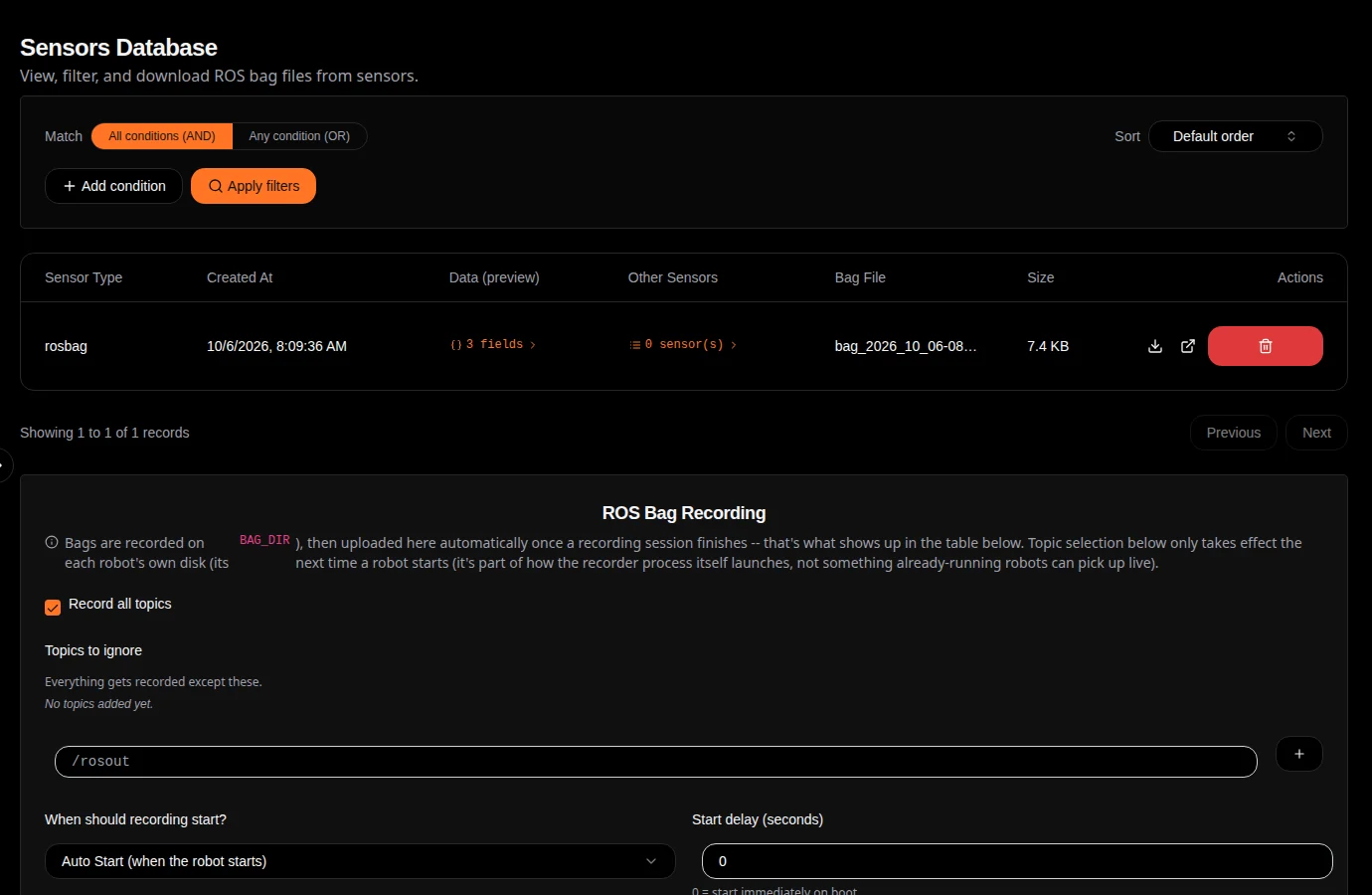
The Sensors page also holds the project-wide recording settings, sent to every robot:
Record all topics, with optional Topics to ignore; or switch it off and list only the Topics to record.
When should recording start? Auto Start (when the robot starts), or Wait for Task (started explicitly), which records only after a start command (the Rosbag panel’s Start, or
/ros2_bag_control).Start delay: seconds to wait after boot before auto-starting (0 = at once).
Changes to when recording starts apply to running robots straight away. Changes to which topics apply the next time a robot is started, because the topic list is fixed when the recorder starts. How recording works on the robot is explained in ROS bag recording.
