Tasks (Step 2)
Page: /analytics_task · sidebar Tasks (Step 2)
Use it to: turn a behaviour tree into something a robot can run: give the
tree its input values, choose the robots, set the stage, time limit and
retries, then run it.
Before this: build the tree on the Behaviour page.
After this: watch the run on Robots Fleet (Step 3) and read the result in
the Tasks database.
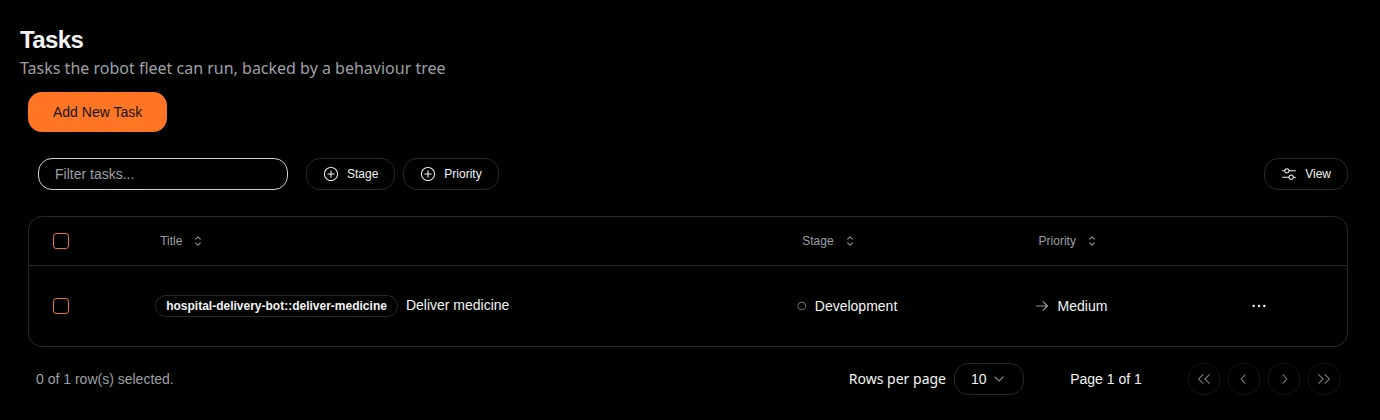
The task list. Each row’s … menu has Edit, Make a copy and Delete.
A tree on its own never runs; a task does. Every task in the project is also copied to every connected robot, so robots can start tasks themselves (see Run a task from the robot).
Create a task
Press Add New Task. The form has four tabs.
Details
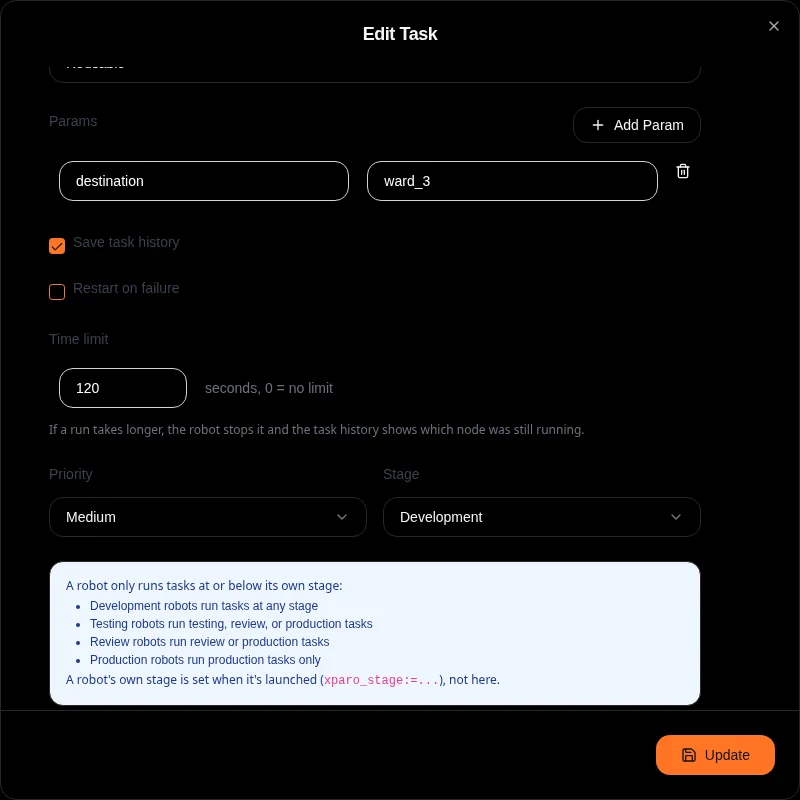
The lower half of the Details tab.
Field |
Meaning |
|---|---|
Image |
A picture for the task (upload one or paste a URL). |
Title |
The name people see. |
Unique Name |
A short ID such as |
AI Prompt |
A description of what the task does and when to use it. It is saved with the task; the AI assistant does not start tasks on its own. |
Task Type |
Reusable (default): run it as often as you like. Single Run: deleted after its first run reports a result (a failed run that will be retried is kept). Auto Launch on Start: runs automatically every time one of its target robots connects or reconnects. Scheduled: lets you enter a schedule (once, daily, weekly or a cron expression, with a time zone). The schedule is saved but XPARO does not run scheduled tasks automatically yet; start them with Run now or from the robot. |
Params |
Named inputs with a default value, such as |
Save task history |
On by default: every run’s full report is saved in the Tasks database. |
Restart on failure |
When a run fails, send it again to the same robot, waiting 1, 2, 4 … up to 60 seconds between attempts, with no limit on attempts. Outcomes that would fail the same way again (an invalid tree, a stage mismatch, a cancel) are not retried. |
Time limit |
Seconds a run may take (default 900; 0 = no limit). When it runs out, the robot stops the tree and the result says which node was still running. |
Priority |
Very Low to Very High, for sorting and filtering the task list. |
Stage |
|
Robot started with |
Runs tasks at stage |
|---|---|
|
any stage |
|
testing, review, production |
|
review, production |
|
production only |
Task Behaviour
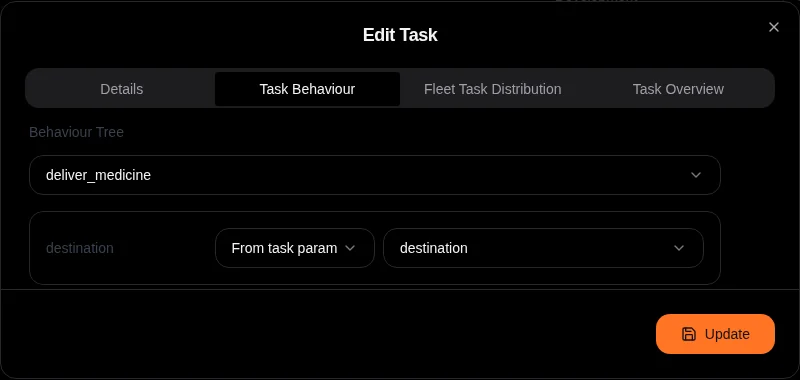
The tree’s {destination} input takes its value from the task param.
Behaviour Tree picks the tree to run: one of the project’s named trees, or
Main for the Scratch Space tree. Below it, every {name} the tree reads
gets a row where you choose its value:
Source |
The value is |
|---|---|
Default value |
The text you type here. |
From env |
A key from one of the project’s environments (pick the file and the key). |
From task param |
One of the task’s params; overridable for each run. |
Random number |
A random whole number between Min and Max, new each run. |
Random string |
Random characters (letters, digits, |
Names that the tree sets itself (for example with a Script node) are not
listed; the tree fills those in while it runs.
Fleet Task Distribution
Strategy |
Where the task runs |
|---|---|
Single robot |
The one robot you tick under Target Robot. Nothing runs if none is ticked. |
Broadcast to all robots |
Every robot in the project at once. |
Round robin / Least busy |
One robot from the ticked Candidate Robots (or from all robots if none are ticked). Today both simply pick the candidate whose last report is the oldest, which can be an offline robot (then nothing runs and Run now says it is offline). |
Max Concurrent Robots and Nature of Task are saved with the task for your own reference; XPARO does not use them to decide where it runs.
For an Auto Launch task, the same settings decide which robots trigger it when they connect.
Task Overview
A plain-English summary of everything above, the Run now button, and the exact command to start this task from the robot itself, with its real task ID filled in:
ros2 topic pub --once /xparo/run_task std_msgs/msg/String \
  "data: '{\"task_id\": \"1497bd47-3553-446c-b72d-92b6db027dcd\", \"override_params\": {\"destination\": \"ward_3\"}}'"
Save with Save (then confirm). Every connected robot receives the task straight away.
Run a task
There are three ways to start a task:
- Run now (Task Overview tab)
The server sends the tree and its input values to the robots picked by the Fleet settings. While it runs, the tab shows “Running on <robot>” with a Cancel button, then the result.
- Auto launch
A task of type Auto Launch on Start runs by itself whenever a target robot connects.
- From the robot
Publish the task ID on
/xparo/run_task(see Run a task from the robot). This needs no server round trip and works offline.
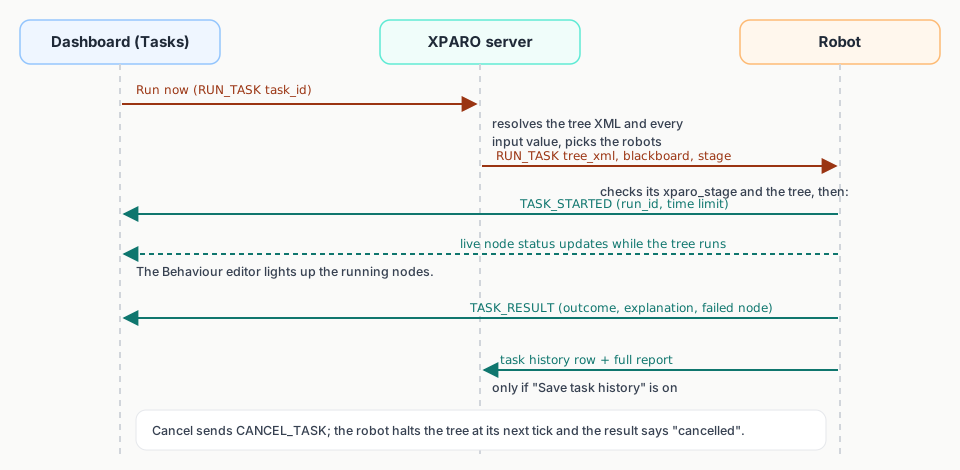
What happens when you press Run now.
Cancel stops the tree at its next tick; nodes that are running are halted
so they can clean up, and the result’s outcome is cancelled.
Reading the result
Every run ends with one result: an outcome, a plain-English explanation and, when something failed, the node that failed and why. The outcomes are listed in Run results. With Save task history on, the full report opens from the Tasks database:
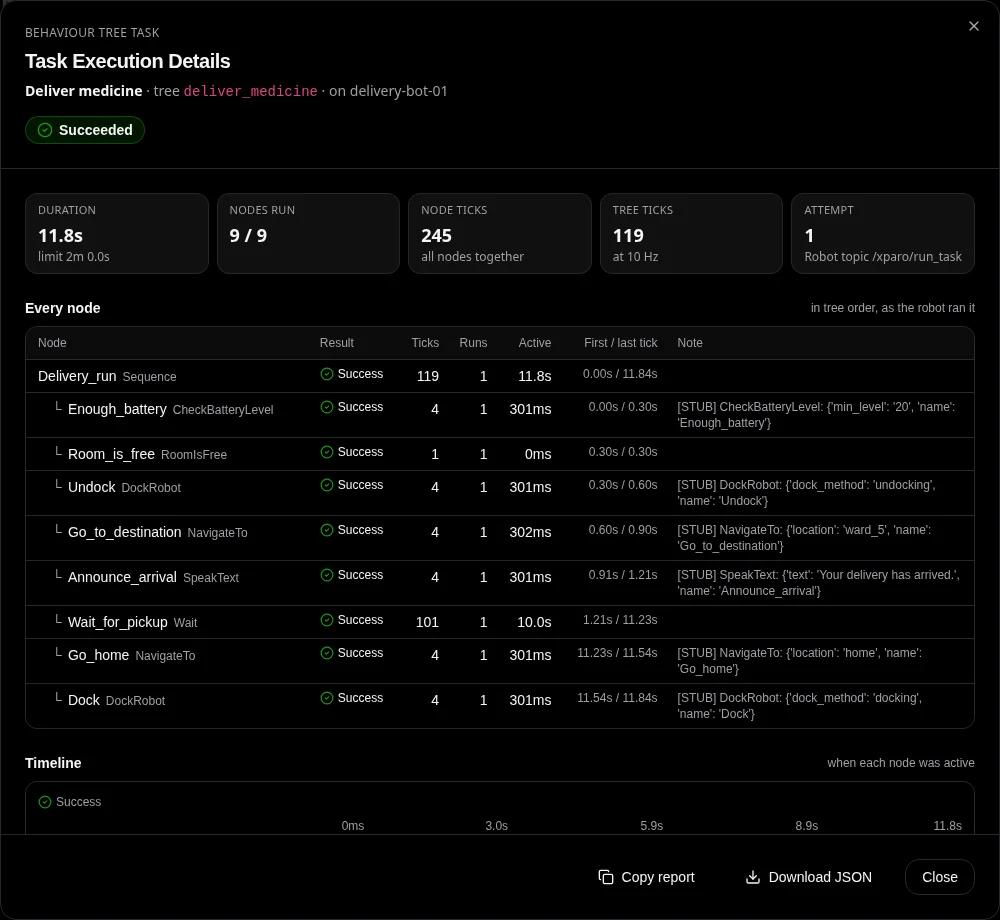
A run report: every node in tree order with its result, tick count and timing.
When Run now fails straight away
Message |
Fix |
|---|---|
No robot resolved to run this task – check Fleet Task Distribution and robot connectivity. |
With Single robot, tick a robot under Target Robot; or the project has no robots yet. |
<robot> is offline (last seen …), so the task wasn’t sent to it. |
Start |
Outcome |
Raise the task’s stage, or start the robot with a lower
|
Outcome |
Fix the tree on the Behaviour page; the error lists every problem. |
Viewers can open tasks but cannot run or cancel them.
