Robots Fleet (Step 3)
Page: /analytics_chats · sidebar Robots Fleet (Step 3)
Use it to: see every robot in the project, read each one’s live feed, and
reach in directly: terminal, files, teleop, ROS bags, ROS 2 tools, health,
Wi-Fi, Bluetooth and power.
Before this: connect a robot (Install and run).
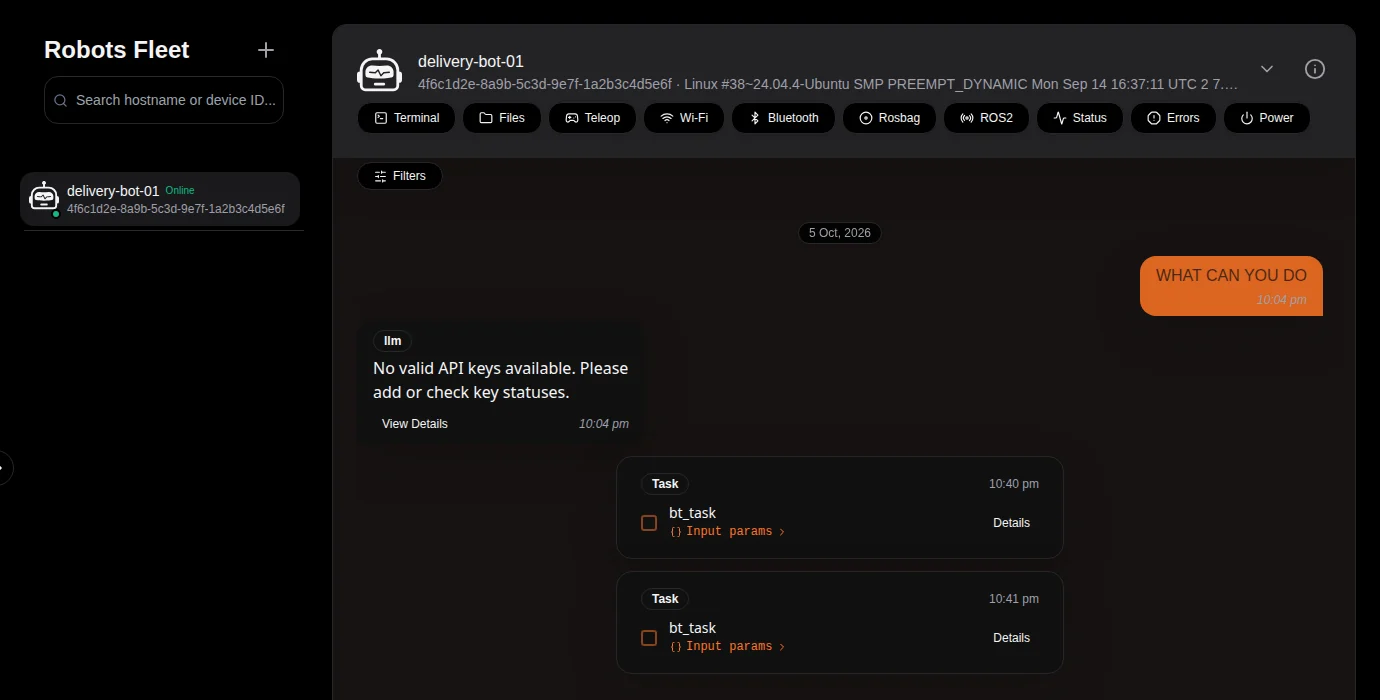
The robot list (left) and one robot’s tools and feed (right).
The robot list
Every robot that has ever connected to the project, with a green dot and Online while it is sending heartbeats (one every 30 seconds; it goes offline after 90 seconds without one). Robots whose health is at warning or error level are grouped at the top under Needs Attention, with a badge. Search by hostname or device ID.
You don’t add robots here: start xparo_ros with the project ID and a
secret key and the robot appears by itself. The + button shows the launch
command with your project ID filled in.
A robot’s page
Click a robot to open it. The header shows its hostname, device ID and operating system. The chevron opens the details: operating system, XPARO and ROS 2 version, IP and MAC address, Wi-Fi network and Bluetooth state, the robot’s Environment Map, and the hardware it found (USB devices, serial ports, I2C buses).
Below the header is the robot’s feed, newest at the bottom: questions it asked the AI and the answers, task runs (with their input values and a link to the full report), system log sessions, and sensor uploads. Filters narrows it by type and date. The feed is a view of the project’s Database (Step 4) filtered to this robot.
Remote tools
The buttons under the header act on that one robot. Each needs the robot to be online, and every tool that changes something is blocked for Viewers.
Terminal
Runs a shell command on the robot and shows its output and exit code.
Each command runs as its own process, as the user
xparo_rosruns as, with the robot’s environment (soros2commands work).Commands stop after 30 seconds; for long output, only the last 50 lines are kept.
It is not an interactive shell:
cddoes not carry over to the next command (chain them:cd /opt && ls), and programs that wait for input will time out.Every command and its result is logged.
$ ros2 node list
exit 0
/xparo_ros
Files
Browses one folder on the robot: transferred_files inside the package’s
install folder (the panel shows its full path as cwd). Upload sends a
file there (up to 200 MB), and each file can be downloaded or deleted. Files
travel in 64 KB pieces over the robot connection, so large files take a while.
To give the robot a file somewhere else, upload it here and move it with the Terminal.
Teleop
Drives the robot by publishing sensor_msgs/Joy messages on /joy (see
ROS 2 topics). Choose:
Gamepad: a real USB or Bluetooth controller plugged into your computer (press any button so the browser notices it);
Virtual Gamepad: on-screen controller layouts, with a full-screen mode, good on phones and tablets;
Raw: set axis and button values directly;
Keyboard: drive with the keyboard.
The panel counts how many messages the robot has acknowledged. Your robot
needs a node that turns /joy into motion (for example
teleop_twist_joy).
Rosbag
Shows whether a ROS bag recorder is running and what it is doing, with Start and Stop (Save also stops: each recording is one file), and Auto-start on boot, which decides whether recording starts by itself when the robot launches. Recorder unreachable means no recorder is running on the robot. See ROS bag recording.
ROS2
The robot’s live ROS 2 graph in three tabs:
Topics: every topic with its message type;
Parameters: every node’s parameters, which you can edit (writing a parameter is blocked for Viewers);
Diagnostics: the latest
/diagnosticsstatus of each component.
Status
A snapshot of CPU, RAM, storage and GPU use, temperature and how long the current session has been running. Refresh takes a new one.
Errors (Health & Errors)
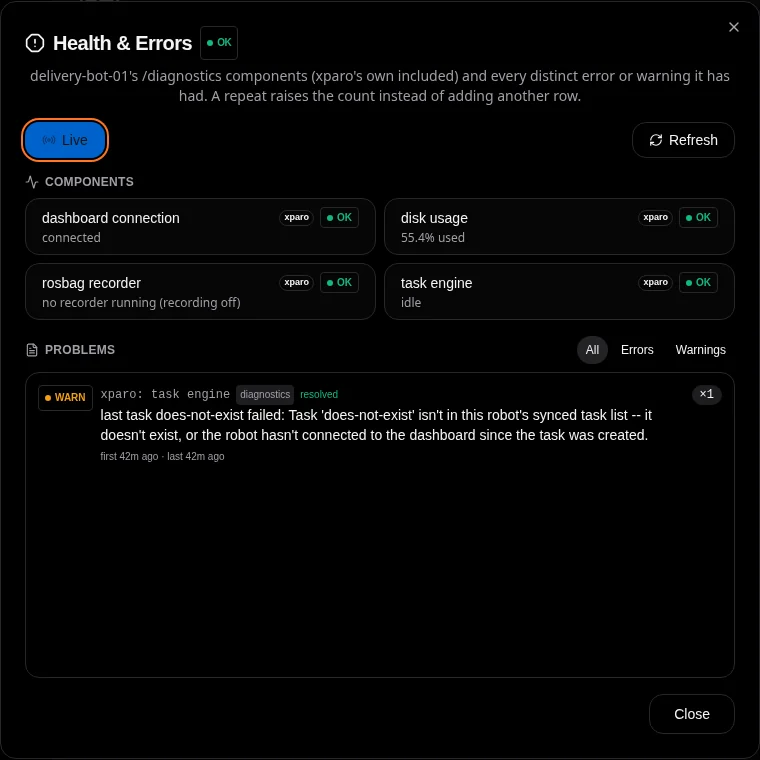
Components and problems for one robot.
Components: the latest state of everything that reports on the standard
/diagnosticstopic, including XPARO’s own four entries.Problems: every distinct warning or error, from
/diagnosticsand from ERROR/FATAL log lines of any node. A repeat raises the counter instead of adding a row; problems that went away are marked resolved.Live streams updates while the panel is open.
The robot’s overall level also travels with every heartbeat, so the Dashboard (project overview) can flag unhealthy robots without anyone opening this panel.
Power
Reboot Robot restarts the robot’s computer. The robot first tries
sudo -n reboot; if the system wants a password, the dashboard asks you for
the robot user’s sudo password, which is used once and never stored. The robot
is offline until it has booted and xparo_ros is running again.
Wi-Fi
Lists the Wi-Fi networks the robot can see (through NetworkManager) and lets you connect to one (including hidden networks), forget a saved one, or turn the Wi-Fi radio on or off. When switching networks you can ask for an automatic revert: if the robot cannot reach the XPARO server through the new network within 45 seconds, it switches back. Changes may ask for the robot’s sudo password, as for reboot.
Bluetooth
Turns the robot’s Bluetooth on or off, scans for nearby devices, and pairs (devices that need no PIN), connects, disconnects or removes them, through BlueZ. Like Wi-Fi, it may ask for the robot’s sudo password.
The Environment Map
A free-text box (usually KEY=value lines) meant for settings specific to
one robot. The robot sends the contents of its local env file
(xparo_local_env_path) when it connects, and Save writes the text back
to the robot.
Warning
In the current version, saving a robot’s Environment Map, or a robot connecting, sends that text to every connected robot in the project, not just that robot. With several robots, keep robot-specific settings somewhere else for now.
AI chat about a robot
Questions a robot asks on /xparo/ask and the answers show in its feed. The
assistant can also answer questions about a robot’s history; it needs the
project’s LLM key (see Dashboard (project overview)).
