Dashboard (project overview)
Page: /analytics_home · sidebar Dashboard
Use it to: check the whole project at a glance, keep an eye on storage and
credits, and manage the project’s secret keys and LLM keys.
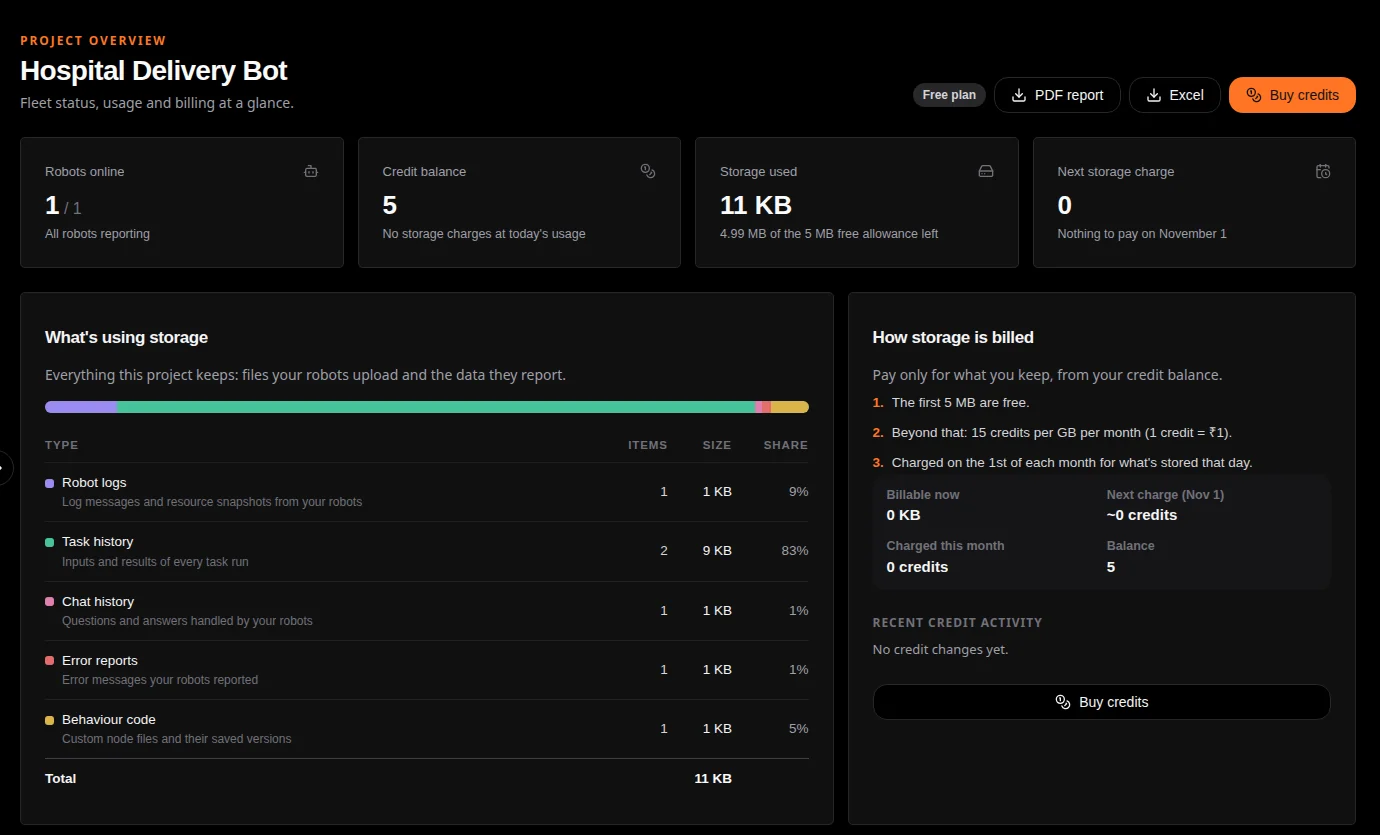
The top of the page: robots, credits, storage and what uses it.
The top row
Robots online (out of all the project’s robots), Credit balance, Storage used (with what is left of the free 5 MB) and Next storage charge. The buttons above them:
PDF report and Excel download a summary of yesterday: billing and the day’s activity.
Buy credits opens the credit packs (500, 2,000 or 10,000 credits; the larger packs cost less per credit). Payment is in Indian rupees.
Storage and credits
What’s using storage lists everything the project keeps, with its size and share: ROS bag recordings, sensor data, robot logs, task history, chat history, error reports, behaviour code (code nodes and their saved versions) and media (website images and ad files). How storage is billed explains the rule:
The first 5 MB are free.
Beyond that, 15 credits per GB per month (1 credit = ₹1).
Charged on the 1st of each month for what is stored that day.
It also shows what is billable now, the expected next charge, what was charged this month, your balance and the latest credit changes.
Fleet health
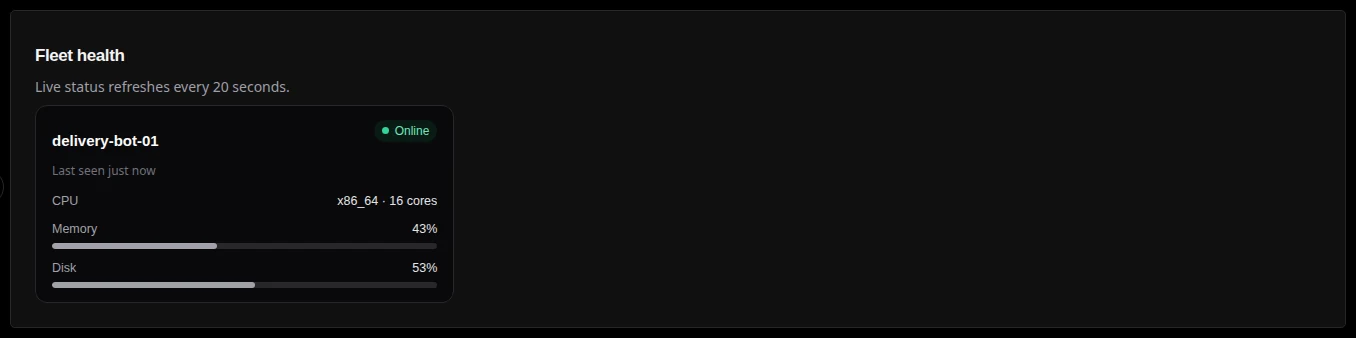
One card per robot, refreshed every 20 seconds: online or offline, when it was last seen, and its CPU, memory and disk use. For the details of a robot’s problems, open its Errors panel on Robots Fleet (Step 3).
Activity
Further down: yesterday’s totals (sensor uploads, data added, tasks completed, logs, chats handled, active robots), sensor uploads over the last 7 days, log levels over the last 30 days, and AI requests over the last 3 months.
Robot locations puts robots on a globe. A robot’s location is estimated
from its public IP address, which the robot looks up through the free
ip-api.com service when it connects, so it is approximate (usually the
city of its internet provider).
Secret Key Manager
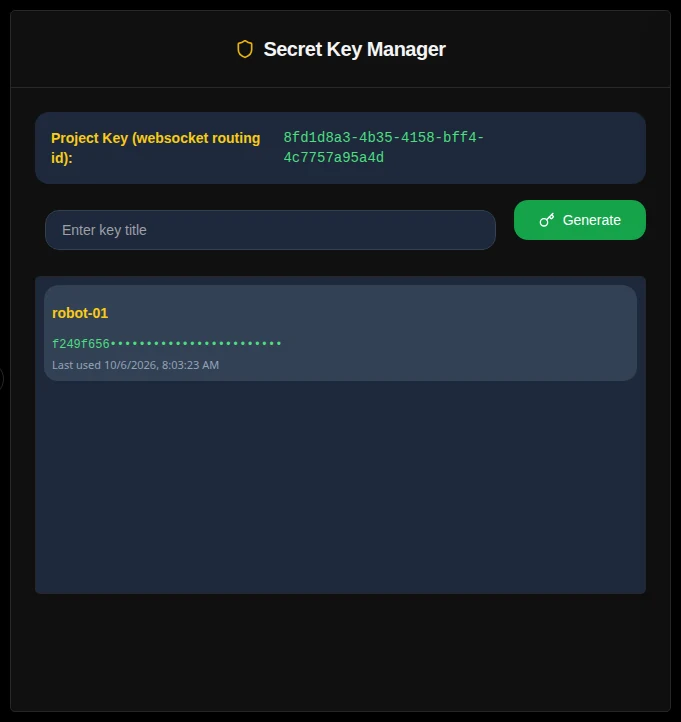
Project Key (websocket routing id) is the project ID robots need.
Generate creates a secret key with the name you typed. The full key is shown once, in a dialog; copy it then. Afterwards only its first eight characters are shown, with when it was last used.
Hover over a key for its controls: freeze (a frozen key cannot be used, switched off or deleted until it is unfrozen), the on/off switch (off keys cannot connect new robots), and delete.
Only the project Owner can manage keys. Robots that have already joined use their own credential, so switching a key off does not disconnect them; it only stops new robots from joining with it. See How XPARO works.
LLM API Key Manager
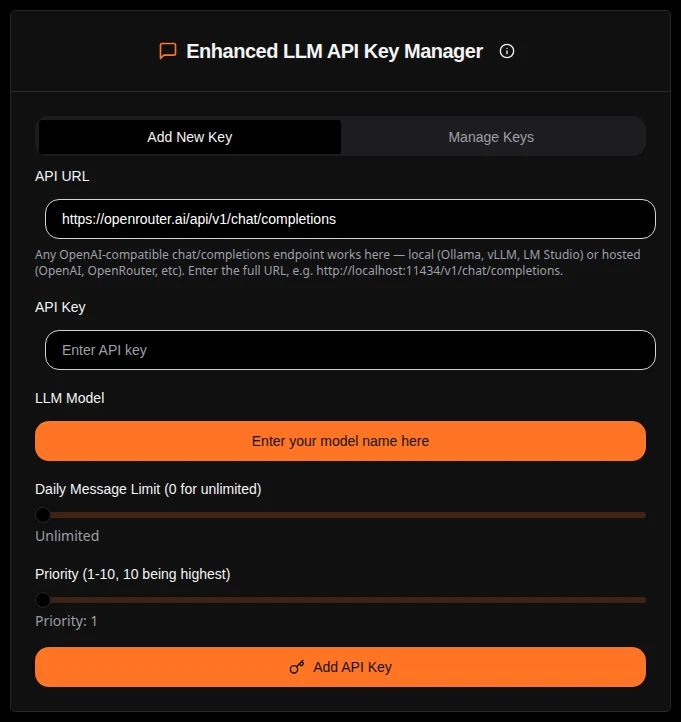
The AI assistant (the Ask here…. bar, the Behaviour page chat and
/xparo/ask from robots) answers with your own language model. Add a
key under Add New Key:
Field |
What to enter |
|---|---|
API URL |
The full address of any OpenAI-compatible chat completions endpoint,
hosted (OpenAI, OpenRouter…) or local (Ollama, vLLM, LM Studio),
e.g. |
API Key |
The key for that service. |
LLM Model |
The model name the service expects. |
Daily Message Limit |
How many questions this key may answer per day (0 = unlimited). |
Priority |
Which key to prefer when you have several. |
Manage Keys lists your keys with their status; each can be switched off or suspended. When a key reaches its daily limit, the next active key is used. Without any usable key the assistant replies “No valid API keys available. Please add or check key statuses.”
Note
The server calls the API URL you enter, so a local address such as
localhost means the XPARO server itself, not your computer. On
xparo.in, use a hosted service or an address reachable from the internet.
