The dashboard
The dashboard at xparo.in is where you design what your robots do, run it, watch it and look back at everything. This section has one page per dashboard page. If you have not connected a robot yet, start with the Quickstart.
How the pages work together
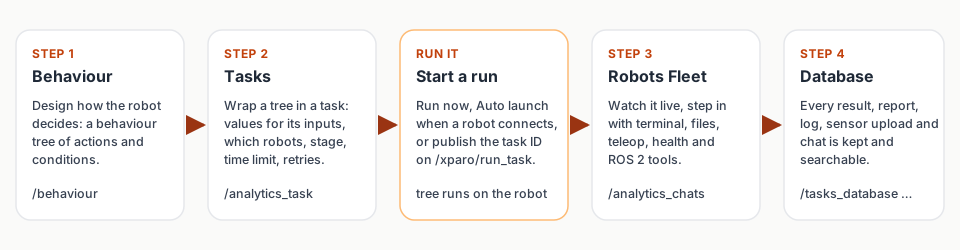
The sidebar numbers the main pages in the order you use them. Around them are the pages for the project as a whole.
Page |
Address |
Its job |
|---|---|---|
|
Pick, create or delete projects. |
|
|
The project at a glance: robots online, storage and credits, fleet health, reports, secret keys and LLM keys. |
|
|
The project’s public web page, team members, gallery, blogs and FAQ. |
|
Behaviour (Step 1) (Step 1) |
|
Design behaviour trees; keep environments and your own code nodes. |
Tasks (Step 2) (Step 2) |
|
Turn trees into tasks, choose robots and stage, run and cancel. |
Robots Fleet (Step 3) (Step 3) |
|
Every robot, its live feed, and remote tools: terminal, files, teleop, ROS bags, ROS 2, health, Wi-Fi, Bluetooth, power. |
Database (Step 4) (Step 4) |
|
Everything robots reported: tasks, sensors and ROS bags, logs, AI prompts, reports, ad plays, feedback, robots. |
Advertising (Earn) (Earn) |
|
Rent your robots’ screens to advertisers. |
|
Your profile, plan, billing and connected devices. |
Every project page also has the Ask here…. bar for the project’s AI assistant (see Dashboard (project overview) for the key it needs).
Where things live
A quick map for “where do I…”:
I want to… |
Go to |
|---|---|
get the project ID or a secret key |
Dashboard → Secret Key Manager |
let the AI assistant work |
Dashboard → LLM API Key Manager |
see the launch command for a new robot |
Robots Fleet → + |
change what a robot does |
Behaviour, then Tasks |
run a task now |
Tasks → (task) → Edit → Task Overview → Run now |
stop a running task |
Task Overview → Cancel |
read why a run failed |
Database → Tasks → click the run |
open a shell on a robot |
Robots Fleet → (robot) → Terminal |
copy a file to or from a robot |
Robots Fleet → (robot) → Files |
drive a robot by hand |
Robots Fleet → (robot) → Teleop |
see a robot’s errors |
Robots Fleet → (robot) → Errors |
change ROS bag recording |
Database → Sensors → ROS Bag Recording |
download yesterday’s summary (billing and activity) |
Dashboard → PDF report / Excel |
add a teammate |
Website → Team Members |
top up credits |
Dashboard → Buy credits |
Who can do what depends on your role in the project (Owner, Editor or Viewer); see the roles table.
